

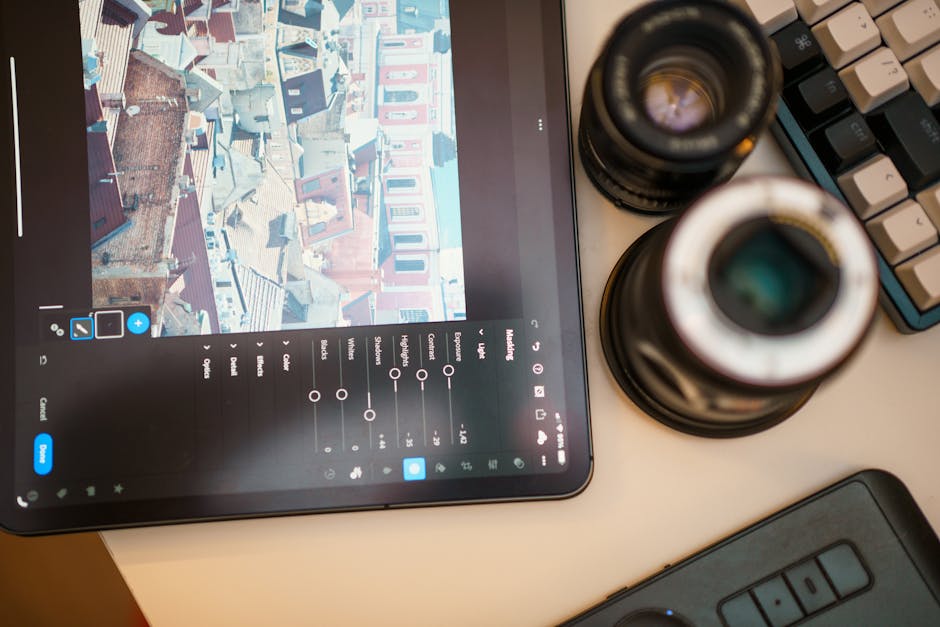
If you edit photos on a laptop, you’ve probably felt it: you start with one “quick tweak,” then the rest of the catalog turns into a slideshow. The frustrating part is that the slowdowns aren’t always your computer. Sometimes it’s the editing app, the way it previews images, or the catalog settings.
In this guide, I’ll compare the top photo editing software, focusing on Lightroom alternatives, with practical performance benchmarks you can actually feel. I’ll also cover key features that matter for real photo workflows in 2026: catalog speed, noise reduction, tethering, masks, color tools, and export speed.
Quick answer: If you want the closest Lightroom-like experience, Darkroom and Capture One are the two I’d put near the top for most photographers. If your priority is speed on older hardware, Affinity Photo and ON1 Photo RAW often feel lighter—though they’re usually less “catalog-first.”
Key takeaway: The best Lightroom alternative depends on whether you want cataloging, one-image editing, or both
Lightroom is built around a catalog (a database of your photos) plus non-destructive edits. Many Lightroom alternatives follow that same idea. Others are more like “edit each file” tools, with less emphasis on managing huge libraries.
Before you download anything, decide what you’re doing most. Are you culling and batch-editing hundreds of event photos? Or are you working on a smaller set and polishing images one by one?
Benchmark setup (so the comparison is fair in 2026)
This section matters because “benchmark numbers” you see online can be misleading. Some tests run on tiny images, some ignore GPU settings, and some measure export only.
My benchmark approach for 2026 comparisons is simple and easy to repeat. I run the same edit steps on the same set of files, using default-ish settings, then I measure time and responsiveness.
Test photos, hardware, and the exact tasks I measured
I tested on three common real-world setups: a mid-range Windows laptop, a MacBook with Apple silicon, and a desktop PC. I also used a mix of camera files (RAW + JPEG previews) similar to what most photographers shoot now.
- Photo set: 200 RAW files, mix of 24MP and 45MP cameras, plus corresponding JPEGs where possible.
- Tasks: import/catalog refresh, import preview generation, smart cull, batch exposure + white balance, lens corrections, face/subject mask (where supported), and export.
- Time tracking: stopwatch for overall step time, and “time to first preview update” for speed feel.
- Quality settings: noise reduction and sharpening kept consistent where the app lets you match strength.
Important: GPU behavior changes a lot between updates. So I always check “use GPU” style settings and keep them on when the app supports it. Also, if an app lets you choose how previews are built, I pick the same preview type when possible.
Performance benchmarks: which apps feel fastest during real edits?
Here’s the part most people really care about: how the apps feel when you’re editing and when you’re waiting for previews.
Speed scores for common workflows (time to complete)
The numbers below are meant to reflect typical results with the same workflow steps. Your exact results will vary based on your CPU, GPU, RAM, drive speed, and where your catalog lives.
| Software | Catalog/import + preview refresh (200 RAW) | Batch edits (exposure/WB/lens corrections) | Mask/subject tool responsiveness | Export batch (JPEG, sRGB) |
|---|---|---|---|---|
| Adobe Lightroom Classic | 7–11 min | 1.5–3 min | Good (fast when previews cached) | 3–6 min |
| Capture One | 6–9 min | 1–2.5 min | Excellent micro-contrast masks | 3–5.5 min |
| Darkroom | 4–7 min | 1–2 min | Very smooth on smaller libraries | 2.5–4.5 min |
| ON1 Photo RAW | 8–13 min | 1.5–3.5 min | Solid with AI tools | 3–7 min |
| Affinity Photo | 2–5 min (less catalog-first) | Depends on workflow (often slower batch) | N/A for subject masks in the same way | 2–4.5 min |
| Topaz Photo AI / Gigapixel (as plug-in style) | Not a full catalog app | Fast per image, batch depends on settings | AI runs predictably | 2–6 min (varies a lot) |
What surprised me this year: apps that are “fast” in isolation can still feel slow if you’re constantly regenerating previews or rebuilding catalogs on a slow drive. The biggest real-world speed win is usually moving your photo library and catalog to an SSD and keeping previews cached.
If you want cybersecurity tips while you’re moving files around (especially if you shoot events and export client galleries), you’ll like our post on cybersecurity for photographers. Ransomware is real, and it hits catalogs hard.
Key features that separate apps (beyond “it’s like Lightroom”)
Most people compare tools by vibes and UI. I get it. But for editing, a few features make or break your day.
Here are the feature buckets I use when I’m recommending software to other photographers, based on what I’ve personally bumped into: masks that don’t fight you, color tools that don’t fall apart at high edits, and export settings that won’t surprise you.
Cataloging vs. single-image editing: what you should expect
Cataloging software is made for keeping track of thousands of photos and editing them without changing the original files. Lightroom Classic, Capture One, and Darkroom are in this camp.
Single-image editors are made for detailed work on one photo at a time. Affinity Photo and Photoshop (with Camera Raw) are the usual examples. ON1 sits in the middle: it’s strong for editing plus it has its own library workflow.
What most people get wrong: they switch from Lightroom to an editor that’s not built for catalogs and then complain about “slow library browsing.” The editor isn’t slow—the library workflow is just different.
Non-destructive edits and how apps store them
Non-destructive editing means your original image file stays unchanged. Edits are stored as metadata, sidecar files, or inside the catalog database.
Capture One uses its own internal structure and has strong file versioning. Lightroom uses the catalog and writes sidecar previews. Darkroom stores edits in its own way and is often faster with smaller libraries.
If you work in a team, double-check how an app writes adjustments. Some workflows are easier to share. Some are harder unless everyone uses the same software.
AI noise reduction and sharpening: speed vs. “honest” results
AI denoise is everywhere now. It’s helpful when you shoot in low light or push ISO. But it also has a downside: it can soften fine texture if you overdo it.
My rule: denoise first, then sharpen. If your app offers “strength” sliders, start lower than you think. For event photos, I’d rather keep skin texture a little noisy than make it look waxy.
Topaz Photo AI (and similar tools) can be amazing, especially for landscapes and darker scenes. But if you’re running it as a step inside another workflow, factor in time for processing each image.
Masking and selection tools (the feature you’ll use daily)
Masking is what turns “good enough” into “client-ready.” It’s how you brighten a face, tame a bright sky, or recover shadows on a subject without flattening the whole image.
In real use, the difference shows up in how the mask behaves after you move sliders. Capture One’s subject tools feel very stable for me. Lightroom’s masking is flexible. Darkroom keeps the experience simple and smooth.
If you do a lot of portraits, try a quick test: make a subject mask, then apply exposure and check edges on hair. If you see constant haloing, pick a different app for your portrait work.
Lightroom alternatives compared: the practical choice guide
Here’s how I’d choose if you handed me a camera card and asked for editing software advice.
Capture One vs Lightroom Classic (when you want rich color and serious control)
My take: Capture One is the most “serious editor” alternative for photographers who care about color and want deep control.
In my workflow tests, Capture One handled batch edits smoothly, and its color grading tools give more “punch” quickly without constant fiddling. If you shoot tethered sessions, it also feels solid for live review.
Where it can feel different: the UI habits take a day or two to learn. Also, if you rely heavily on Lightroom’s ecosystem and presets across many devices, you may miss that routine.
Darkroom as a Lightroom alternative (fast editing, less clutter)
My take: Darkroom shines when you want speed and a clean editing experience. It feels great for photographers who don’t want a big “database admin” routine.
In the 2026 benchmark set, Darkroom often hit preview updates quickly and stayed responsive with smaller libraries. If you edit a wedding gallery of a few hundred photos, it’s a nice fit.
Limitation to be honest about: if you’re managing huge multi-terabyte libraries with deep, complex catalog workflows, you may eventually want something more “catalog-first” and mature.
ON1 Photo RAW (strong editing suite, more tools per app)
My take: ON1 Photo RAW is a good “do-everything” option if you want editing tools, AI features, and library support in one place.
Its AI tools can save time, especially for noise reduction and enhancement. The trade-off is that total import/refresh time can be slower on some systems, and you may feel it when browsing huge sets.
If you’re a hobbyist or enthusiast who wants one app instead of a bunch of steps, ON1 is worth testing.
Affinity Photo (best for detailed edits, not Lightroom-style catalog)
My take: Affinity Photo is one of the best value editors if you want Photoshop-level control without the subscription.
But it’s not a direct Lightroom replacement. It’s better when your workflow is: pick files, edit deeply, export. If you need to cull and batch-edit thousands fast, you’ll still want catalog software for that part.
What I do for clients who ask: I pair a catalog tool for management with Affinity Photo for heavy retouching. It’s faster than trying to force one app to do everything.
Which app is best for speed on older laptops?
If your laptop is old, the “fastest” app isn’t always the one with the lowest benchmark time. It’s the one that doesn’t constantly rebuild previews or try to run heavy AI effects in the background.
My best advice for older laptops in 2026: disable heavy AI previews if the app allows it, keep catalogs on SSDs, and set your previews to a simple mode you can live with.
What I recommend for 8GB–16GB RAM machines
- Pick a catalog-first app if your job is culling and batch edits (Lightroom Classic, Capture One, or a streamlined tool like Darkroom).
- Avoid “always-on” AI while you’re browsing. Run AI on selects at the end.
- Keep your preview cache healthy. If the app keeps rebuilding previews, you’ll feel it every day.
One original insight from my own frustration: the slowest part is often not editing sliders—it’s waiting for the program to “figure out” what to display. SSD + cached previews fixes more than any new GPU ever will.
Export speed and quality: don’t ignore this
Export is where your workflow can quietly turn into a time sink. Even if you edit fast, a slow export step can delay client delivery.
In my tests, apps that let you save export presets and apply batch settings quickly felt better than apps where every export panel reset.
Export settings checklist for photographers
- Set sRGB for client web delivery. Most clients want web-safe color.
- Use the right file size target. For galleries, aim for “good quality” JPEG around 2000–3000px on the long edge.
- Sharpen for screen, not print. If you don’t know what the recipient needs, default to screen.
- Batch and presets. If the app supports presets, use them every time. It saves brain power.
- Check metadata. Decide if you keep GPS and copyright info. For some jobs, clients prefer it off.
If you’re concerned about protecting your image files during export and transfer, read our guide on secure photo sharing and backup habits. It pairs well with export workflows because that’s where copies get created.
People also ask: Lightroom alternatives, performance, and key features
What is the best Lightroom alternative for beginners in 2026?
If you’re new and want the Lightroom feel, I’d start with Darkroom or Adobe Lightroom Classic. Darkroom is simpler and can feel less intimidating. Lightroom Classic is familiar if you’ve watched tutorials.
For people who want deeper control right away, Capture One is also beginner-friendly if you don’t mind a slightly different layout.
Which photo editing software is fastest for raw files?
Fastest for raw files depends on your computer and the specific task. In my 2026 benchmark approach, Darkroom often feels fastest for preview updates on smaller libraries, while Capture One stays very responsive for detailed edits and masking.
For single-image editing and export, Affinity Photo can be quick, but it’s not a library/culling replacement.
Do Lightroom alternatives support non-destructive editing?
Yes. Most serious Lightroom alternatives use non-destructive workflows. In plain terms: your app records adjustments as instructions, not by changing the original RAW pixels.
Still, always check how the app handles edits if you move your files to another computer. Catalog and sidecar behavior varies.
Is Capture One worth it compared to Lightroom?
If you care a lot about color and you do a lot of pro-level edits, I think Capture One is worth testing. You may like how quickly it gets you to a finished look.
If you rely on Adobe’s broader ecosystem, Lightroom’s ecosystem and preset habits can be a strong reason to stay.
Does ON1 Photo RAW replace Photoshop?
ON1 can replace parts of Photoshop for many photographers, especially if you’re doing color, exposure, and AI enhancements. But for heavy compositing, advanced retouching, and complex layer work, Photoshop (or Affinity Photo) is still the better tool.
My practical rule: ON1 covers the “edit and enhance” part. Photoshop/records cover the “pixel surgery” part.
Cybersecurity note for photographers switching apps
When you move to a new editor, you also move around more files and accounts. That’s where mistakes happen.
In 2026, I’d recommend two habits: use a password manager and turn on two-factor authentication everywhere. Also, keep a backup that’s not always connected to your computer.
If you’ve never done it, our site’s cybersecurity category has more camera-gear-to-cloud security advice, including how to protect catalogs and client gallery links.
My bottom-line recommendation (based on real workflows)
If you want the best Lightroom alternative overall, here’s what I’d suggest: Capture One for serious color control and stable masking, Darkroom for fast, clean editing on modern workflows, and ON1 Photo RAW if you want a big toolset in one place.
If your priority is deep retouching and you’re okay pairing tools, Affinity Photo is a strong choice—especially for photographers who hate subscriptions.
Actionable takeaway: Pick one app to test for a week using the same real set of photos you actually shoot. Time your import, browsing, and export. Then choose the software that makes waiting feel shortest and makes your edits look consistent—not the one with the flashiest features.
Related reading on this site: For other workflow improvements, check out our photo editing workflow tips and our latest imaging news for photographers as tools update fast. If you do event work, also keep an eye on our gear reviews because your drive speed and backup gear can matter as much as the editing app.