

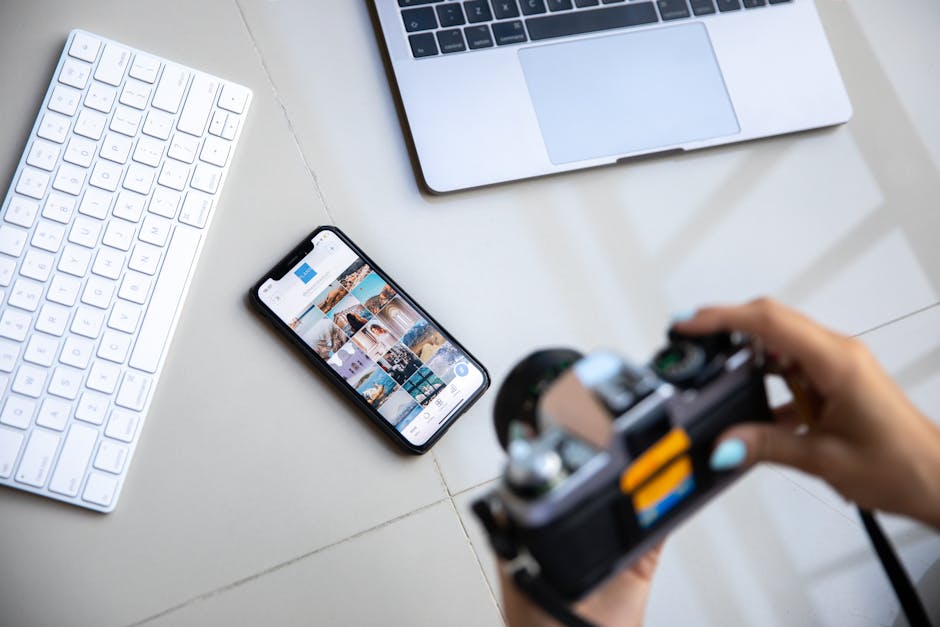
If you’ve ever sent a client a “just sharing this link” photo gallery and then later worried about who else saw it, you already understand the risk. In 2026, the biggest threats aren’t usually scary hackers in a hoodie. They’re stolen logins, public links, fake login pages, and apps that have more access than they need.
Cybersecurity for creators is how you protect your photos, your workflow, and your reputation—especially when you use camera apps, cloud storage, and sharing links every day. I’ve had to clean up account messes for friends after a password leak, and the fixes all follow the same pattern: lock down access, tighten settings, and reduce what links can do.
Cybersecurity for creators means securing the whole path your photos travel
Photos don’t just “live” on your camera roll anymore. They move from a camera app to your phone storage, to the cloud, and then to other people through links. Every handoff is a place where something can go wrong.
Cybersecurity for creators refers to the steps you take to protect your accounts and your images from theft, unwanted sharing, and takeovers. If you do only one thing, do this: treat your camera app + cloud account as the same security system.
What most photographers get wrong about link sharing
Here’s the mistake I see constantly: creators share a link and assume it only works for the person they sent it to. In reality, many photo galleries can be found by search engines, or they can be opened by anyone who has the URL.
Also, people forget that “view-only” isn’t the same as “safe.” Some platforms let viewers copy images, screen-capture, or download originals depending on settings and permissions.
Secure your camera apps: settings, permissions, and account safety
Your camera app is the front door. If it’s loose, attackers can get into your phone data or trick you into connecting to the wrong account.
Start with permissions. On iPhone and Android, check the app’s access to photos, files, camera, microphone, and “data usage.” Don’t give a gallery app access to everything if it only needs access to camera uploads.
Do a quick camera-app permission audit (takes 5 minutes)
I do this when I install a new app, and then again every few months. It’s fast, and it catches changes you didn’t notice.
- Open your phone settings.
- Go to the list of apps and pick your camera app (and any photo backup app).
- Check permissions one by one: Photos/Media, Storage/Files, Camera, Microphone, Contacts, and “Notifications.”
- Set Photos/Media to “Selected Photos” if the app doesn’t need your whole library.
- Turn off microphone access for apps that don’t record audio.
If the permission choices look confusing, use the plain rule: if it doesn’t need it, remove it. Most image editing apps do not need your contacts list.
Lock down app logins: avoid “sign in with email” habits
When you log into a camera or photo app using email and password, you’re depending on your password strength. If that email gets leaked (which happens more often than people think), your photo account is next.
In most major apps, use passkeys or multi-factor sign-in (MFA). Passkeys are a newer login method that uses your device to prove it’s you. They’re harder to steal than a password. If passkeys aren’t available, use an authenticator app.
Be careful with “free presets,” “free storage,” and fake plugin sites
One of the most common creator scams in 2026 is the “free pack” that asks you to sign in to your cloud account. The link looks real, but the login page is a copy.
My rule: never sign in from a link inside an ad or message. Type the site address yourself. If it’s a legit company, you can reach it the normal way.
Harden your cloud accounts: passwords, MFA, backups, and recovery
Cloud storage is where your photo library goes when you’re busy. That’s why it needs the strongest protection you can handle.
Cloud accounts are not just “where files sit.” They’re also the place where people can reset your security settings, download originals, and share links to others.
Turn on MFA the right way (not just the “easy” way)
Most photo services support multi-factor sign-in. In 2026, the best option is an authenticator app or passkeys. SMS codes are better than nothing, but they’re not the best.
Why? SMS can be intercepted or rerouted if someone gets control of your phone number. Authenticator apps don’t rely on your carrier.
Do this now:
- Enable MFA on your photo cloud account.
- Check backup phone numbers and recovery email addresses.
- Make sure you can still access those numbers if you lose your phone.
Use a real password manager (and stop reusing passwords)
If you’re reusing the same password across cloud accounts, you’re playing the odds in the wrong direction. A password manager generates unique passwords and stores them safely.
Pick one you trust and set it up correctly. Then save these accounts inside it:
- Primary cloud storage (Google Drive, iCloud, Dropbox, OneDrive, etc.)
- Photo hosting galleries
- Any client proofing tools
- Adobe account (if you use Lightroom/Photoshop workflows)
If you want a simple checklist style guide, you might also like our post on passwords and 2FA basics for photographers.
Know your recovery settings before you need them
Recovery is the part people skip until it’s an emergency. I’ve seen accounts get stuck because the creator changed phones, lost access to the old email, and never updated recovery options.
Spend 10 minutes checking:
- Recovery email is still active and you control it.
- Recovery phone number is still yours.
- Account recovery options don’t rely on an old number you can’t access.
Secure photo sharing links: settings, expiration, and viewer control
The link is where trust meets risk. If you share the wrong link settings, you can leak photos without realizing it.
In my opinion, sharing links should act like rental keys. They should have a clear door lock (permission level) and a return date (expiration) whenever possible.
Pick the strictest sharing option you can
Most platforms offer controls like “anyone with the link,” “only specific people,” and sometimes download/view restrictions.
Here’s a practical rule:
- If it’s a client proofing gallery, use “only people with access” (invite-based), not “anyone with the link.”
- If you must use a link, set it to expire and disable download if the platform allows it.
- Use password-protected links when sending to emails you don’t fully control.
Turn off indexing and search visibility for galleries
Some photo galleries can be indexed by search engines. If you share a public link, the images may show up in search results depending on the platform and settings.
Check for options like:
- “Allow search engines” / “Indexing” toggle
- Public vs unlisted vs private visibility
- Whether the link can be previewed without signing in
If a client gallery is for private work, keep it off public search. That’s not paranoia. That’s just smart.
Expiration dates: how long is safe for client proofs?
For most client proofing, you don’t need links to last forever. A good default is 7 to 14 days for proof rounds, then reduce access after final delivery.
Example workflow I use:
- Send proof gallery link with expiration in 10 days.
- After the client selects images, update the link to a “final delivery” page.
- Disable access or remove the public link 24–48 hours after delivery.
This cuts risk a lot if someone forwards the email link by mistake.
Stop account takeover: spot phishing and protect your devices
Account takeovers usually start with one of two things: a stolen password or a fake login attempt. Your job is to make both harder.
Know the phishing patterns creators fall for
Attackers don’t need to be creative. They just need to be believable. In 2026, phishing emails often pretend to be about:
- “Unusual sign-in” on your cloud account
- “Storage full” or “payment failed”
- “New device login” alerts
- “Confirm your photo sharing access” messages
Here’s the giveaway: you get asked to click a link, sign in immediately, and “verify” something.
Instead, open a new browser tab and go to the service website by typing the address. Then check security logs there.
Secure your phone and laptop like you’re a pro (because you are)
Your phone is a camera, a password manager, and a key to your cloud. That means basic device security is part of cybersecurity for creators.
Do these now:
- Enable device lock (PIN/passcode) and do not use a simple 4-digit code.
- Turn on automatic updates.
- Use full-disk encryption (most modern phones enable this automatically).
- Set up “Find My” or remote wipe for emergencies.
If you edit on a laptop, keep the OS updated and avoid running apps from random websites. This is boring advice. It works anyway.
What about VPNs?
A VPN helps protect your connection on public Wi‑Fi. It does not protect you from logging into a fake site. It also doesn’t replace MFA.
My take: use a reputable VPN when you’re in hotels, cafes, or coworking spaces—but treat it as one layer, not the whole shield.
Photo backup and sharing links: reduce damage when something goes wrong
The best cybersecurity plan includes a backup plan. Because even careful people get locked out sometimes.
When you have a backup, a hacked account doesn’t automatically mean lost images.
Use the 3-2-1 idea for photo backups
“3-2-1” is a common backup method: keep 3 copies of your photos on 2 different types of storage, with 1 copy off-site. Off-site can mean cloud storage.
Here’s a creator-friendly setup:
- Local copy: external SSD or hard drive
- Second local copy: another drive kept at a different location
- Cloud copy: your normal photo cloud library
In 2026, I still recommend rotating drives every year or when you notice slow failures. Drives don’t announce dying in advance.
Don’t rely on “deleted” as your only safety net
When an account gets hacked, attackers may delete files and then you’re stuck restoring from versions or backups. That can take time, and time costs money.
Check if your cloud service has version history or trash retention. Turn it on and keep it.
People Also Ask: cybersecurity questions photographers ask all the time
How do I secure photo sharing links so only my client can view them?
Use invite-based sharing or “specific people” access whenever you can. If you must use a link, make it unlisted (not indexable), add a password if available, and set an expiration date like 7–14 days for proofs.
Also remove access after delivery. A link you forget about is the one that leaks.
Should I use a public gallery for my portfolio, and how do I keep it safe?
Public portfolios are fine for showing your work. Safety comes from controlling what you upload and what you include.
For public sites, avoid posting raw files, GPS location data, or client-identifying info. If your platform lets you strip metadata, turn that on. For client work, keep proof galleries private.
What’s the difference between view-only and download-disabled?
View-only usually means the viewer can open photos in a browser. Download-disabled tries to stop saving originals, but it’s not the same as preventing screenshots or copying.
So treat download restrictions as “better control,” not perfect protection. If a client needs strict privacy, consider watermarking or sharing low-res proofs first.
How often should I change my passwords?
If you use MFA and unique passwords with a password manager, you don’t need to change passwords every month. A better approach is to change passwords when you have evidence of risk: you clicked a suspicious link, you suspect malware, or you got a credible breach notification.
That said, review your accounts every 6–12 months and remove sessions you don’t recognize.
Is two-factor authentication enough to protect my cloud photos?
It’s a big step, but not the whole plan. Two-factor authentication (2FA) reduces account takeovers, but you also need correct sharing settings, strong device security, and good recovery options.
For creators, sharing links are the weak point when people focus only on login security.
Quick action plan: do these 10 steps today
If you want a simple checklist you can finish this week, use this. These steps cover camera apps, cloud accounts, and photo sharing links—the places where I’ve seen the most problems.
- Turn on passkeys or MFA for your cloud photo account (not SMS if you can avoid it).
- Check and update recovery email + recovery phone number.
- Install a password manager and generate unique passwords for each photo-related service.
- Review camera app permissions and set Photos access to “Selected Photos” where possible.
- Remove microphone access from apps that don’t need it.
- In photo sharing settings, switch from “anyone with the link” to “specific people” for client work.
- Add expiration dates for proof galleries (start with 10 days).
- Disable search indexing for private galleries and unlisted links.
- Enable full device lock and auto-updates on phone and computer.
- Confirm you have at least one offline backup drive and one off-site copy.
That’s not overkill. That’s the bare minimum for creators who rely on their photos for income.
Real-world scenario: how a “simple” link turns into a problem
Here’s a case I helped fix. A photographer sent a wedding proof link to the couple and their family. The photographer used a public link that didn’t expire. The couple later shared it in a group chat.
Within a week, the link was being viewed by people who weren’t supposed to see the images yet. The photographer could not instantly “undo” what had already happened, because copies can be made by viewers.
The fix wasn’t magic. We did three things: we tightened permissions for new galleries (invite-based), we enabled expiration on all future proofs, and we added watermarking for early rounds. It cut the risk going forward, and it reduced stress during the next shoot.
Related gear and tech angle: cybersecurity matters even when you’re buying cameras
Security isn’t only about apps and accounts. Many camera workflows now involve Wi‑Fi transfer, phone tethering, and companion apps. Those connections are great when they’re set up correctly.
When you review gear, also check how the companion app behaves. Can you control which photos sync? Does it ask for more permissions than needed? If you want to connect this topic to our gear coverage, you may like our guide to Wi‑Fi camera app safety (it’s written for real shooting scenarios, not lab tests).
Small comparison: link sharing vs invite sharing
| Sharing method | Who can view | Best for | Main risk |
|---|---|---|---|
| Public “anyone with link” | Anyone who has the URL | Short-lived personal sharing | Accidental forwarding + long exposure window |
| Invite / specific people | Only accounts you invite | Client proofing + paid work | Access errors if invite emails are wrong |
| Password-protected link | People with the password | When you can’t use invites | Password reuse or sending password insecurely |
The “best” choice depends on speed. For anything paid or private, I always lean toward invite-based access first.
Conclusion: make cybersecurity for creators part of your normal workflow
Cybersecurity for creators is not a one-time setup. It’s a set of habits that protect your photos from the most common real-world problems: stolen logins, sloppy permissions, and sharing links that last too long.
If you only remember one takeaway: secure your camera apps and cloud accounts first, then lock down how your photo sharing links work (invite-based access, expiration, and off for search indexing). Do that, and you’ll stop most leaks before they start.
When you’re ready to tighten your workflow even more, check our secure photo workflow checklist and build it into your next shoot day setup.
Image SEO (for your featured image): alt text suggestion — “Cybersecurity for Creators: securing camera apps and cloud photo sharing links on a phone.”