


Secure photo workflow starts with one painful question
When a memory card fails mid-shoot, you don’t get a do-over. The real goal of a secure photo workflow is simple: protect your images from loss, theft, and accidental sharing—without slowing you down.
As of 2026 best practice for photographers is still the same: keep copies in different places, encrypt anything that travels or sits in the cloud, and control who can access files. That’s how to build a secure photo workflow with backups, encryption, and safe cloud sharing you can trust.
What “secure photo workflow” means in real life (not just in theory)
A secure photo workflow is a set of steps that keeps your photos safe from common disasters. It includes how you ingest files, store them locally, back them up, encrypt them, and share them for client work.
Encryption is key. Encryption means your files are turned into scrambled data using a key. If someone steals your drive or intercepts a download, the photos are still unreadable without the key.
Also, keep an eye on the human side. Most “security breaks” I’ve seen in photography come from quick habits: copying folder links you didn’t mean to share, using weak cloud passwords, or leaving a drive plugged in where it can be grabbed.
Ingest safely: build a repeatable “card to folder” routine
The fastest way to lose photos is to rush the copy step. I start every job the same way: check the card, copy with verification, then only after that do any editing.
Step-by-step: copying cards with verification (no shortcuts)
- Use a dedicated card reader that’s connected directly to your laptop/desktop. Avoid random USB hubs.
- Create a session folder with a clear name (example: 2026-04-26_ClientName_Shoot1).
- Copy files using software that can verify checksums after the transfer.
- Verify the copy before you delete the card. This catches bad writes early.
- Only then format the card for reuse.
For copying/ingest, many photographers use ShotBox, Photo Mechanic (for viewing/workflow), and checksum-friendly tools depending on OS. On macOS and Windows, you can also use tools that run hash checks after copying. The important part is the verification step, not the app name.
What most people get wrong during ingest
- They delete the card first. Even one “it’ll be fine” moment is how folders end up empty.
- They copy with dragging and dropping. It works—until it doesn’t, and you won’t always notice partial copies.
- They store only one copy. One drive is not backup. It’s a single point of failure.
Backups that actually protect you: 3-2-1 plus encryption

Backup advice gets repeated so much that people tune it out. Here’s the version that matters: for photo work, use a 3-2-1 plan and encrypt the copies that leave your computer.
3-2-1 backup means you keep 3 copies of your photos, on 2 different types of storage, with 1 copy off-site. Off-site can be another location you control or a cloud backup.
A backup setup I’d use on real shoots (with numbers)
Let’s say you shoot weddings or sports and your shoot folder is 300 GB. Here’s a clean plan I’d run in 2026:
- Copy 1 (working copy): Your main editing SSD (fast access).
- Copy 2 (local backup): An external SSD or HDD docked for daily protection.
- Copy 3 (off-site): An encrypted cloud backup or encrypted drive stored at a second location.
If you shoot 100 GB to 1 TB per week, automate the local backup, but schedule cloud backup to run overnight. You don’t want a slow upload during peak editing time.
Choosing between external drives and cloud backups
Both work. External drives are faster and you’re in full control. Cloud backups are simpler for off-site copy, but you still need encryption and good account security.
| Option | Pros | Cons | Best for |
|---|---|---|---|
| Encrypted external drive | Fast, no upload time | You must store it safely in a second place | Frequent travel or tight upload bandwidth |
| Encrypted cloud backup | Off-site copy is automatic | Upload time + subscription cost | Ongoing back catalog protection |
| Hybrid (recommended) | Coverage for both speed and off-site risk | Costs more devices | Clients who can’t lose files |
Encrypt backups (especially off-site copies)
If your cloud provider supports end-to-end encryption, use it. End-to-end encryption means only you hold the keys, not the provider. If you don’t want to dig into providers, you can also encrypt the backup files before upload.
For example, many people use encrypted containers or encrypted backup tools so that a stolen account still can’t reveal image content. In plain terms: the backup may be readable only after you unlock it with your key.
Encryption for photographers: keys, passphrases, and what to avoid
Encryption is only as strong as your key management. If your password is weak or your key is stored in the same place as the encrypted files, the “secure” part falls apart.
Strong passphrases you can actually keep
I use long passphrases made of 4 to 6 random words plus a separator. Example style: Blue-Cedar-Drift-Map-7. It’s long enough to resist guessing and easy for me to type correctly.
- Use a password manager so you don’t reuse passwords.
- Turn on multi-factor authentication for every photo account: email, cloud backup, cloud sharing, hosting.
- Keep a recovery plan for your encryption keys so you can restore files after hardware failure.
Don’t make this common mistake: “encrypted” but not really
Some photographers assume that because they enabled “lock” on a drive, their cloud sharing is safe too. Drive encryption helps for lost hardware. Cloud sharing also needs secure links, access controls, and safe permissions.
Another mistake: saving your encryption key in plain text on the same laptop. If someone gets the laptop, they get the key. Store keys separately—printed, stored in a password manager, or saved in a secure vault you can access when needed.
Safe cloud sharing for clients: links, permissions, and download hygiene
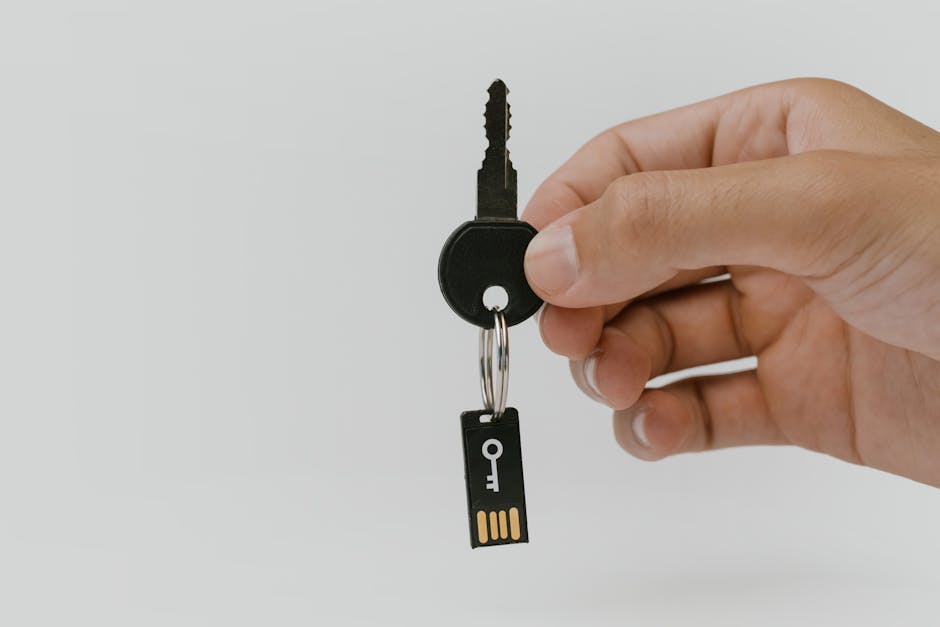
Cloud sharing is where photographers get burned—because the files are meant for clients, but the link might become public if you set it wrong.
Safe sharing is less about fancy settings and more about tight control: who can access it, for how long, and how you deliver it.
My rules for client sharing in 2026
- Use share links that expire (for example, 7 to 14 days). After that, revoke access.
- Require sign-in if possible and avoid “anyone with the link can download” when it’s not needed.
- Use separate links for previews vs full-resolution files.
- Turn off public indexing so it can’t show up in search engines.
What about gallery websites and smug “download all” buttons?
Galleries are convenient, but convenience can lead to oversharing. If your gallery lets anyone download originals, you need to decide whether that matches your client agreement.
In practice, I separate preview and delivery. Clients see a low or watermarked preview first, then get the final download link only when everything is ready.
People Also Ask: secure photo workflow questions photographers ask a lot
How do I encrypt photos for sharing without making clients miserable?
The easiest path is usually not full-file encryption. Instead, use controlled sharing: expiring links, limited access, and sign-in. If you must encrypt files, share an encrypted archive (like a zipped encrypted file) and send the decryption key through a different channel (example: password via text/email separate from the link).
Most clients don’t want to juggle encryption tools. If your clients are small business owners or non-tech people, keep it simple with permission-based cloud sharing.
What’s the safest way to back up RAW photo files?
RAW files are big, and that’s why they’re often the first thing people skip. The safest approach is: keep one working copy, one encrypted local backup, and one encrypted off-site copy.
If you use Lightroom or Capture One, still back up the original RAW files and not just the catalog. Catalog-only backups don’t save you if the original images are gone.
Should I trust cloud storage with my photos?
Cloud storage is safe when you secure your account and encrypt what matters. A cloud provider can store your files, but the real safety comes from strong passwords, multi-factor authentication, and access settings on shared links.
My take: trust the cloud for backup, but don’t treat it like your only copy. Fires, account issues, and accidental deletes can still happen.
How often should I back up my photos?
For live shoots, copy cards as soon as you can and run a local backup daily at minimum. For ongoing projects, do a full backup pass overnight or within 24 hours of new work.
Once a week isn’t enough if you shoot constantly. If you don’t shoot daily, weekly may be okay, but I still recommend checking your workflow so you know how fast you can recover from an accident.
A real workflow example: one shoot, two edits, zero panic
This is the setup I used after a client shooting day went sideways. A friend’s laptop failed and they lost an afternoon of editing. I learned to keep edits separate from the originals and to back up within hours, not days.
Example schedule
- During the shoot: Two cards stay in the bag untouched except when swapping. I don’t “fix” files in-camera.
- Right after: Copy to Session folder with verification, then put one copy on an external drive.
- Same night: Sync/backup off-site (encrypted) overnight so I don’t wait.
- Next day: Edit from the working copy, but never delete original RAW files until backups show as complete.
- Delivery: Share a previews link first, then an expiring full-resolution link for the final files.
The key detail: I don’t rely on “I think it finished uploading.” I check. I want clear status like “completed” rather than guessing from a spinning icon.
Security extras that matter for photographers (and don’t slow you down)
Small add-ons can stop big problems. Here are a few I consider must-haves for a secure photo workflow.
Lock down your devices
- Use full-disk encryption on your laptop and desktop. On modern systems this is often built in.
- Enable auto-lock after a short time when you step away at a client location.
- Keep your OS and photo apps updated. Security patches are not optional if you’re connected to the internet every day.
Turn your camera cards into “read-only” peace of mind
After copying and verifying, I keep cards separate until delivery is done for that client. If something goes wrong, I have the card as a last resort.
This isn’t always possible for high-volume sports photographers, but I think it’s a smart rule when stakes are high.
Control your sharing accounts
- Use a dedicated email for client sharing and cloud account recovery if you can.
- Never share master links you can reuse forever. Create new links per job and expire them.
- Audit your accounts monthly: check connected apps, active sessions, and sharing permissions.
Quick checklist: build your secure photo workflow this week
If you want a fast plan, use this checklist. Don’t try to fix everything at once—pick the steps you can do in a day or two.
- Set up your ingest routine so card copies are verified before deletion.
- Create a 3-2-1 backup rule for every new session folder.
- Encrypt off-site backups and ensure you have a safe place for keys.
- Enable multi-factor authentication on email, cloud backup, and sharing.
- Change your client sharing settings to use expiring links and correct permissions.
- Test a restore once. Open a folder from your backup and confirm you can see files.
That last step (a restore test) is the one most people skip. It’s also the one that proves your workflow actually works when you need it.
Internal links you might also like
If you want to keep this thread going, these posts fit well with a secure photo workflow:
- Password habits and 2FA tips for photographers
- External SSD vs HDD for photo backups: what I learned reviewing drives
- Lightroom and Capture One catalog backups you can trust
Conclusion: secure photo workflow is about control, not fear
Building a secure photo workflow with backups, encryption, and safe cloud sharing doesn’t have to turn into a full-time cybersecurity job. It’s about repeating the right steps every time: verify during ingest, keep multiple copies, encrypt off-site storage, and share with expiring, controlled links.
If you only do one thing today, make it this: set up a restore test from your backup. Once you can reliably get your files back, you’ll feel the calm confidence that makes client delivery easier—not harder.
Featured image alt text: How to build a secure photo workflow with encrypted backups and safe cloud sharing for photographers