

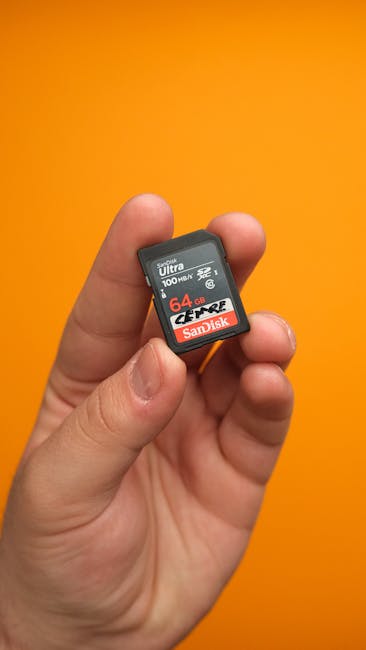
I still remember the panic of opening a folder after a trip and seeing “file missing.” It wasn’t just one photo, either. The drive had failed, and the backups weren’t where I left them. That moment is why I’m sharing the best photo backup strategy in 2026: a clear 3-2-1 workflow built for photos, RAW files, and video.
Here’s the direct answer up front: keep 3 copies of your images and video, store them on 2 different types of storage, and keep 1 copy off-site (like cloud or a drive you physically store away). Do that, and you’re protected from the most common real-world disasters—drive death, accidental deletion, fire/theft, and even ransomware.
Below, I’ll show you exactly how I set it up in 2026, what tools I use, what mistakes to avoid, and how to test the system so it actually works.
What “Best Photo Backup Strategy in 2026” Really Means
The best photo backup strategy in 2026 is the one you can follow every week, not the one with the most features. It also has to handle more than JPEGs, because RAW files and video are bigger, slower to copy, and more likely to fail if you treat them like “just files.”
Backup is not the same as storage. Storage is where files sit. Backup means you can get them back after something bad happens—like a failed SSD, a corrupted card, ransomware, or a user error (yes, that includes deleting the wrong folder).
My rule of thumb: if your backup plan doesn’t include a way to restore a random shoot from the middle of last month, it’s not a real backup plan.
3-2-1 Backup Workflow for Photos, RAW, and Video (The Core Plan)
The 3-2-1 workflow for photos, RAW files, and video is simple: 3 copies, 2 types of storage, and 1 copy off-site. Each “copy” has a job, and each one protects you from different trouble.
3 Copies: Your “Get It Back” Safety Net
For a typical photo shoot, you end up with:
- Copy 1: the working library (usually your computer or editing workstation)
- Copy 2: a second copy on a different device type (external drive)
- Copy 3: an off-site copy (cloud or a drive stored away)
Copy 1 is where you edit. It can fail, be stolen, or get corrupted. Copy 2 is what saves you when a drive dies. Copy 3 saves you when the whole place is gone, or when something like ransomware locks your computer and external drives.
2 Storage Types: Why “All External Drives” Isn’t Enough
Two storage types means your backups live on different kinds of media. For example:
- Type A: spinning hard drives (HDD) like 8TB–18TB
- Type B: SSDs/NVMe or cloud storage (cloud counts as a different storage system)
In 2026, I recommend HDD for bulk because it’s cheap per terabyte, plus either SSD (for a smaller “fast restore” set) or cloud with versioning (for protection against deletion and ransomware).
1 Off-Site Copy: Cloud Versioning vs. Physical Drive
Off-site is where people slip up. They copy to a second drive but keep it on the same desk. If the desk burns or gets stolen, you’re back to zero.
Cloud off-site (with version history) is great for accidental deletion and ransomware recovery. Physical off-site (a drive you store at a friend’s house or in a safe deposit box) is great when you want zero monthly costs.
Personally, I like a hybrid: cloud for protection and a “cold” drive stored away for peace of mind. That’s my version of the best photo backup strategy in 2026.
My Recommended Setup in 2026: Simple, Fast, and Secure
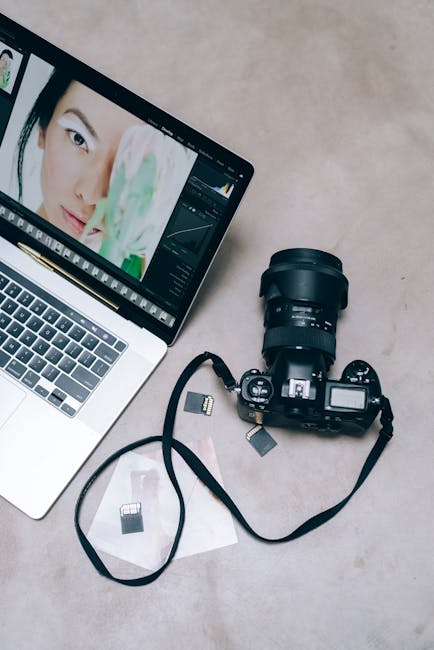
The goal is to make your backup routine fast enough that you actually do it. I set mine up so that after import, everything finishes without me babysitting it.
Here’s the setup I recommend for most photographers (and yes, it works for video too):
Step 1: Import to a “Staging” Folder (Not Directly Into the Final Library)
When I import card footage, I first copy to a staging folder on my computer. This is where I check that the camera files exist and aren’t corrupted.
I use a folder layout like:
- 2026/TripName/
- Subfolders: RAW, JPEG, Video, Exports
This sounds basic, but it saves you later. If your library software goes weird, your files still have a clean path.
Step 2: Verify Files After Copy (Stop Silent Failures)
Verification is the part most people skip. Then they find out months later that some files were damaged during transfer.
In 2026, I still follow this rule: after copying a shoot, I verify file sizes match and do a checksum check when the tool supports it. Many import tools and copy apps can validate data.
If you want a plain-English test: open a few RAW files in your editor and one video clip in your player. You’re looking for “it opens instantly” and “it doesn’t act like it’s broken.”
Step 3: Create Your Second Copy Immediately (External Drive)
Right after staging checks, I copy the full shoot folder to an external drive. This is your Copy 2.
Good external-drive habits for RAW and video:
- Use a single “Photo Archive” drive for backup, not a random mix of data
- Keep it plugged in only when you’re copying, unless you’re using a drive-based system that stays healthy
- Prefer USB 3.2 or Thunderbolt for speed
- Choose HDD for bulk and SSD for speed if you shoot lots of fast bursts
What most people get wrong: they rely on “dragging the folder” without a checksum or a log. If the copy fails halfway, the folder may still look “present” but is missing files.
Step 4: Make the Off-Site Copy (Cloud or Away Drive)
Copy 3 is where you protect yourself from disasters outside your home setup.
Cloud plan (my current go-to): use a service that supports version history and file restore. That means if you accidentally delete a folder, you can roll back.
Away drive plan (best for zero subscription costs): label a drive for each month (or each project), copy backups to it, and store it away. I recommend a “quarterly off-site” rhythm for home users, and “per job” for working shooters.
Note: if you choose cloud, make sure you know what happens when you stop paying. The best setup is one you can still restore from.
Best Photo Backup Strategy for RAW Files: Don’t Treat RAW Like Extra Credit
RAW files are large, and they’re also the most expensive to “re-create.” The best photo backup strategy in 2026 treats RAW as first-class data, not optional extras.
RAW File Reality Check: Size, Metadata, and Software Dependence
RAW files often include your camera’s full sensor data, plus metadata like lens info, exposure settings, and time stamps. If you lose them, you can’t always get the same edit results back later, especially for tricky lighting.
Also, RAW isn’t “one file and done.” If you use photo management software (like Lightroom Classic catalog files), you need to back up the catalog too, not just the RAW folders.
Original insight from my workflow: I keep “source RAW” separate from “edited library exports.” My RAW folder is never edited in place. When I export, I write new files into an Exports folder. This keeps the backup simple and makes it easy to restore the true source data.
How I Handle Lightroom Catalogs (Where Backups Usually Break)
Lightroom catalogs (the .lrcat file) track your edits and metadata. Backing up only the RAW folder means you might lose the edit history.
My rule:
- Back up RAW folders and videos with the 3-2-1 plan
- Back up the Lightroom catalog file on the same schedule as your main backup drive
- Test restore by opening the catalog after a failure simulation (more on testing below)
This is especially important if you shoot weddings or events where you need edits fast and you can’t spend a day rebuilding keywords and ratings.
Backup Strategy for Video Footage: RAW Video and Long Clips
Video makes backup slower and more stressful. The best photo backup strategy in 2026 includes video-specific habits so you don’t end up with “some clips backed up, some missing.”
Use Folder Keys That Match Your Shoot Cards
When you shoot video, your clips are often split into multiple folders. I label my ingest folders the same way as the card or drive structure so I can spot missing pieces fast.
Example folder layout:
- 2026/ClientName/CameraA/
- 2026/ClientName/CameraB/
- 2026/ClientName/Video/Exports/
This matters because video editors often create proxies, cache files, and export versions. Back up source video first, then decide how deep you want to go with intermediate files.
How Often Should You Back Up Video?
If you’re shooting daily, do your backup right after each shoot. Video files are easy to copy wrong, and you want to catch problems while you’re still on location.
If you’re shooting a studio day with stable power and good card workflow, weekly can work, but daily is safer for weddings, sports, and events where missing footage is a real headache.
Security Matters: Ransomware-Proof Backups for Photographers
Backup isn’t just about drive failures. In 2026, ransomware is a real threat to photographers because catalogs, drives, and export folders are valuable.
Ransomware-proofing means your backups are harder to delete or encrypt. The fastest way to do that is to keep one backup offline (or write-protected), and to use cloud versioning.
Ransomware Defense for Your Photo Backup System
Here are the rules I follow:
- Keep one copy offline: an external drive disconnected most of the time
- Use version history in cloud: it lets you roll back files after deletion or encryption
- Use strong account protection: unique passwords and 2FA
- Don’t run daily backups as admin if you can avoid it
If you want more practical steps, check out our post on ransomware prevention tips for photographers. It goes deeper on what to change on your devices.
Encryption: Yes, But Use It Wisely
Encrypting backups protects you if drives are stolen. If you encrypt, test restores too—because encrypted files that can’t be opened are just as useless as missing files.
I encrypt the off-site drive (Copy 3 physical) and rely on cloud encryption plus version history. For working drives, I keep it practical: focus on keeping backups disconnected and protected rather than obsessing over encryption everywhere.
Tool Choices That Fit Real Budgets (With Pros and Cons)
Your tools don’t need to be fancy. They need to be reliable, fast enough for RAW and video, and set up so you can restore from them without stress.
Below is a simple comparison of common backup building blocks.
| Backup Component | Good For | Pros | Cons |
|---|---|---|---|
| External HDD (USB) | Copy 2 (main archive) | Cheap per terabyte, big capacity | Slower than SSD, needs care to stay healthy |
| External SSD | Fast restore set | Quick access, good for smaller libraries | Costs more per terabyte |
| Cloud with version history | Copy 3 off-site | Great for accidental deletion, ransomware recovery | Upload time and monthly cost |
| “Away” drive rotation | Copy 3 offline | No subscription, strong physical protection | You must remember rotation schedule |
If you’re shopping for drives, our external hard drive reviews for photographers can help you pick sizes that match your shoot volume.
People Also Ask: Photo Backup Strategy Questions
How many backups do I need for photos in 2026?
For most photographers, you need three backups copies (the 3 in 3-2-1). That means: your working folder, a second copy on a different device type, and one off-site copy for disaster recovery.
If you only keep two copies (computer + one external drive), you’re still exposed to theft, fire, ransomware that hits multiple devices, and drive corruption you didn’t notice.
Is cloud backup enough for RAW files and video?
Cloud backup is great, but cloud alone is not my favorite answer. You still need a second copy on a different storage type because internet can fail, accounts can lock, and services can change.
In other words: cloud is excellent for off-site copy 3, but pair it with a local archive for copy 2. That’s how the best photo backup strategy in 2026 stays practical.
Should I back up photo catalogs or just the RAW files?
Back up the photo catalog too, if your workflow uses one. For Lightroom, the catalog file stores your edit history and organization. If you only back up RAW folders, you can still re-import, but you’ll lose your ratings, collections, and time you spent building your library.
How do I test my backup actually works?
Testing is not optional. A backup that can’t restore is like a fire extinguisher with a broken nozzle.
A simple restore test you can do in 20 minutes
- Pick a random shoot folder from 2–6 weeks ago
- Restore it from your off-site location (or second drive) to a test folder
- Open 3–5 RAW files and play one video clip
- Check that the folder structure matches what you expect
I do this every month for active libraries and every quarter for older archive drives.
Common Mistakes I See (And How to Avoid Them)
These mistakes are so common that they should come with a warning label.
Mistake 1: Backups sitting in the same place as the originals
If your external drive is always plugged in next to your computer, you lose both when ransomware hits. Make at least one backup disconnected, and keep an off-site copy for disasters.
Mistake 2: Copying without verification
A drag-and-drop can look “done” even when some files didn’t copy right. Always verify or use a tool that checks for errors.
Mistake 3: Only backing up JPEGs
JPEGs are smaller, but they’re not your edit insurance. RAW files give you real edit freedom later. Backup RAW with the same seriousness as your final images.
Mistake 4: No clear folder naming
If your archive has generic names like “IMG_1234” with no trip name, restoring later becomes stressful. Use consistent date/project folder names.
A Backup Schedule That Won’t Collapse on Busy Weeks
You don’t need a perfect schedule. You need a schedule you can keep even when you’re tired after a shoot.
My recommended routine for 2026
- Every shoot: import to staging → verify → copy to Copy 2
- Same day: start cloud upload for that shoot (or copy to a away-drive rotation schedule)
- Monthly: restore test from Copy 3 (or rotate a drive and test a sample)
- Quarterly: audit storage health (drive SMART/health checks) and check for failed backups
If you shoot professionally, you’ll tighten this. If you shoot as a hobby, you can loosen it a bit—just keep the 3-2-1 foundation.
Where This Fits in Our Broader Coverage (Gear, Tech, and Security)
Backup is part hardware and part security. That’s why this topic sits in our Cybersecurity for Photographers category, alongside guides that help you protect your libraries and accounts.
On the tech side, you might also like our photo import workflow tutorial where we talk about card handling and avoiding corrupted batches. And if you want gear recommendations, browse our Gear Reviews section for storage options built for real shooting volume.
Conclusion: Your Actionable Takeaway for the Best Photo Backup Strategy in 2026
If you want the best photo backup strategy in 2026, build it around the 3-2-1 workflow and enforce it for RAW files and video—not just your final JPEGs. Keep a working copy, a local archive on a different device type, and one off-site copy with version history or a drive stored away.
Then do the part everyone skips: test a restore every month. Pick a random shoot folder, restore it, and open a few files. Once you do that, you’ll know your system isn’t just “set up”—it actually saves you when something goes wrong.
Start today with Copy 2 and Copy 3. Your future self will thank you the first time you need to recover fast.