

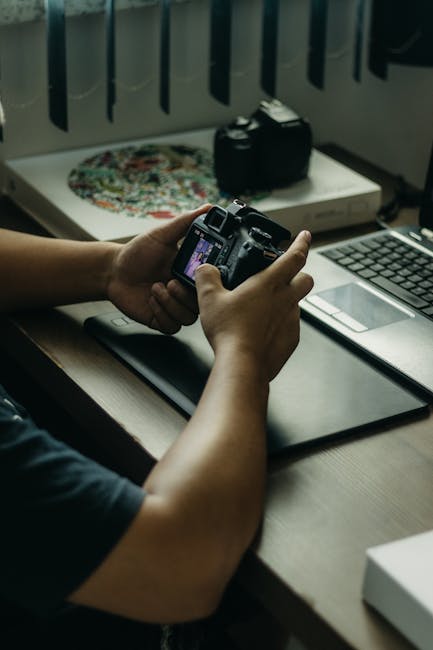
Real talk: I’ve seen photographers lose paid client photos to the same few mistakes over and over—weak passwords, “quick” file transfers, and cloud settings they never checked. The scary part is that it usually isn’t one big hack. It’s lots of small security gaps stacking up.
A practical cybersecurity checklist for photographers should cover three places you touch every day: your camera gear, your laptop/phone, and your cloud workflow. If you lock those down in the right order, you protect your clients, your reputation, and your income.
Below is a hands-on checklist I’d use if I were packing up for a wedding job tomorrow. It’s written for 2026 best practices, but you can start today.
Start here: your photo security plan (camera, laptop, cloud)
Your security plan is only as strong as its weakest link. Most photographers focus on cloud accounts and forget what happens in between—like memory cards sitting in a bag, or a laptop left unlocked in a studio.
In plain terms, you want three layers:
- On-device safety: lock down your camera and computer so thieves can’t access files fast.
- Safe transfers: reduce the chance files get copied to the wrong place or infected.
- Account protection: make your cloud and email hard to break into.
Also, remember this key idea: backups are not the same as protection. A backup means you can recover after loss, but it doesn’t stop someone from stealing your originals if your accounts are open.
Cybersecurity checklist for photographers: secure your camera and memory cards
Secure your camera first because it’s where the original files start. If someone gets the card, they often get everything.
1) Use the right card workflow (and stop “just swapping cards”)
I’m a big fan of fast card swaps when I’m shooting, but I also do it with rules. When you remove a card, you treat it like it holds cash.
- Keep cards in a dedicated case with a zip or hard shell.
- Never leave cards loose in a camera bag pocket.
- Label cards by shoot date (example: “2026-06-12 — John + Sara”).
- After the shoot, cards go directly into your import routine.
What most people get wrong: they toss cards into a “misc” pocket and only format at the end of the week. If you lose one card, it’s game over.
2) Turn on camera protections you can actually use
Many cameras have settings for password protection or encryption on memory cards. It’s not on every model, and some features vary by brand, but check:
- Card encryption: if your camera supports encrypted cards, enable it.
- Lock screen / user login: for cameras with Wi‑Fi or app controls, limit who can connect.
- Wi‑Fi password: if your camera uses Wi‑Fi, use a strong unique password (not the default).
When I review gear, I pay attention to Wi‑Fi settings because that’s where photographers accidentally expose themselves. If your camera connects to your phone automatically, you should know what it’s doing.
3) Avoid direct Wi‑Fi sharing to random networks
Connecting your camera to public Wi‑Fi is usually a bad idea. Public Wi‑Fi can be snooped, and “easy login” networks are where people get tricked into connecting to the wrong thing.
For client work, use phone tethering only if you trust your setup. Otherwise, skip Wi‑Fi and transfer files with a cable or card reader.
Secure your laptop/phone: the heart of your photography workflow
Your laptop is the control center. If it’s compromised, attackers can read files, steal passwords, and even delete originals.
Here’s what I do on every editing machine, including Windows and macOS setups.
4) Lock the machine like you mean it (screen lock + full-disk encryption)
This is the first “do it now” step. If your laptop gets stolen, full-disk encryption is the difference between “data safe” and “data gone.”
- Enable full-disk encryption: BitLocker (Windows) or FileVault (macOS).
- Set a short screen lock time: 1–5 minutes max.
- Use a strong account password: not a birthday, not a pet name.
If you travel for shoots, also make sure you require a password after sleep. Don’t rely on “it usually locks.” It won’t when you’re busy.
5) Keep the OS and apps updated (yes, even photo apps)
As of 2026, updates fix real security bugs, not just “small improvements.” I schedule updates weekly on a weekday afternoon so they don’t interrupt client deadlines.
At minimum, update:
- Operating system
- Browser (Chrome/Firefox/Safari/Edge)
- Email app
- Photo import/editing software
- File transfer tools
Real-world scenario: you download a “free watermark remover” or a random preset pack, then months later it’s blamed for a breach. Often the original problem was already there. Updates close those holes.
6) Use antivirus/anti-malware—but don’t skip behavior checks
Good security tools help, but they won’t stop every trick. I still do two things every time I plug in a card:
- Import from a known software path (not random file browsing).
- Don’t run unknown installers from external drives.
If you work with second-hand computers or rentals, I’m extra strict. That’s where surprises hide.
7) Turn on your password manager and store credentials there
Password managers are one of the best upgrades for creative professionals. They generate strong passwords and fill them in safely.
I recommend you:
- Use one password manager across devices.
- Turn on multi-factor authentication (MFA) for your email and cloud.
- Stop reusing passwords across accounts.
What most people get wrong: they keep a spreadsheet of passwords “just for backup.” If that file gets stolen, it becomes a master key.
Secure file transfers and backups: import safely, then protect duplicates
Your import method matters. A lot of photographers lose photos because files don’t copy fully, or they copy to the wrong folder and realize weeks later.
Here’s a workflow that’s simple and hard to mess up.
8) Use a repeatable import checklist with verification
I follow a “copy, verify, then delete” pattern. Verification means you check that the file size (and ideally hash) matches what’s on the card.
Even if your software has an option like “verify after import,” turn it on. It costs a little time and saves you from silent copy failures.
- Connect card reader.
- Import into a dedicated folder structure (by date + client name).
- Run verify.
- Only then consider deleting from the card (and only if you have at least one backup).
If you’re using Lightroom Classic, Capture One, or similar tools, make sure you’re not pointing to random drives. Consistency helps you spot weird activity.
9) Keep backups offline at least once (for client peace of mind)
Cloud is great, but I still keep an offline backup too. Offline means not always connected to your laptop, so ransomware can’t reach it easily.
My baseline backup setup:
- Primary: laptop internal drive
- Backup #1: external SSD/HDD with auto backup off (manual is fine)
- Backup #2: cloud (or network storage)
Then I rotate drives monthly or per job. For paid weddings, I don’t wait weeks to create the offline copy.
10) Set “no auto-sync” for your import folders
If you use cloud sync tools (like Google Drive sync folders or Dropbox desktop sync), be careful. Some sync folders accidentally upload half-imported files or duplicate everything.
Better approach:
- Import locally first.
- Verify.
- Then manually upload finished exports or finished libraries.
This is one of my favorite photographer cybersecurity tips: controlling when files leave your computer prevents a lot of chaos.
Cloud security for photographers: protect your storage, links, and sharing
Cloud accounts are high-value targets because photos are personal and valuable. Attackers love them because they pay off quickly, either by stealing content or selling access.
11) Turn on multi-factor authentication (MFA) everywhere it’s available
MFA means “you need two steps to log in.” The first step is your password. The second is usually a code from an app, a hardware key, or a phone prompt.
Prioritize in this order:
- Email account
- Cloud storage (Dropbox, Google Drive, iCloud, OneDrive)
- Client gallery platforms
- Photo marketplaces or portfolio hosts
Use an authenticator app or security key when you can. SMS codes are better than nothing, but they’re not the strongest option.
12) Audit sharing links (and remove old access)
Most photographers share galleries with “anyone with the link.” That’s not always bad, but it must be time-limited and reviewed.
Do this after every big client project:
- Check who has access.
- Turn off public sharing when possible.
- Expire links after delivery.
- Use password-protected galleries for anything sensitive.
I’ve seen artists forget old links in their browser history or send them to the wrong person. Audit once, then you’re done.
13) Secure your client email and recovery settings
Your cloud account recovery is a common weak spot. If someone controls your email, they often reset your cloud password.
In 2026, the must-do checks for your email account are:
- Add MFA to email.
- Check “recovery phone” and “recovery email.”
- Review recently used devices and active sessions.
If you ever hired a contractor, designer, or assistant for a job, also make sure their access is removed after the project ends.
14) Use end-to-end encryption for the right kinds of files
End-to-end encryption (E2EE) means only the sender and receiver can read the content. Service providers can store data, but they can’t view it in plain form.
Not every photo workflow needs E2EE. If you’re delivering client galleries in a standard platform, you may not have full control. But for archived “keep safe” folders, E2EE tools can make a big difference.
My rule: if it’s personal client data that you don’t want to expose, choose stronger encryption options for the storage layer.
“People also ask” cybersecurity questions photographers ask a lot
These are common worries I hear from friends and from people messaging me after gear reviews or tutorials.
Is using Wi‑Fi on my camera risky?
It’s risky when you connect to unsafe networks or use weak passwords. If you’re transferring files over Wi‑Fi, use a private phone hotspot (if you trust it) and change the camera’s Wi‑Fi password from the default.
Also, disable Wi‑Fi when you don’t need it. That reduces chances that the camera gets discovered or paired by accident.
How do I protect my photos from ransomware?
Ransomware protection is mostly about backups and limits. Keep at least one offline backup that isn’t plugged in all the time. Also, avoid signing into shady sites, installing random software, or opening email attachments from unknown senders.
When you work, use separate folders for “active edit” vs “archive.” If ransomware hits, it usually focuses on the folders it can reach quickly.
Should I encrypt my external hard drives?
Yes, if you store client originals or unshared backups on them. External drives are easy to grab and hard to track. Encryption means that if the drive is lost or stolen, the data still stays locked.
On Windows, BitLocker To Go works well. On macOS, use FileVault or a supported encryption option for your drive format.
What’s the best way to share client galleries safely?
Use time-limited, password-protected links when possible. Don’t leave public galleries open forever. If your client platform supports “expire after X days,” turn it on. If it supports watermarking, add it for viewing links (not for final delivery unless your contract allows it).
For downloadable downloads, keep access controlled and remove old links after delivery.
25-step practical cybersecurity checklist (save this)
Here’s the full checklist you can copy into your notes app. If you do nothing else, do steps 1–10 and then come back for the rest.
Camera + cards
- Use a dedicated, secure memory card case.
- Label cards by shoot date and client name.
- Never leave cards loose in the bag.
- Enable camera encryption if your model supports it.
- Change camera Wi‑Fi password from default (unique and strong).
- Turn off camera Wi‑Fi when you’re not transferring files.
Laptop/phone
- Enable full-disk encryption (BitLocker or FileVault).
- Set screen lock to 1–5 minutes.
- Update OS and browsers weekly.
- Use reputable anti-malware protection.
- Use a password manager (stop password reuse).
- Enable MFA on email, cloud, and gallery platforms.
- Review active sessions/devices in your email and cloud accounts.
Transfers + backups
- Use a repeatable import process: copy → verify → then delete.
- Verify imports (file size or hash) when supported.
- Import into a dedicated folder structure per client/shoot.
- Avoid syncing half-imported folders to cloud automatically.
- Keep at least one offline backup (drive unplugged most of the time).
- Keep backups in two places (local + cloud or local + external).
- Rotate backup drives monthly or per job for important work.
Cloud workflow + sharing
- Audit sharing links after each client delivery.
- Disable public sharing when possible.
- Use password-protected galleries for downloads.
- Expire links automatically (time limits).
- Lock down account recovery settings (email + recovery info).
- Use stronger encryption options for sensitive archives.
Quick comparisons: camera Wi‑Fi transfer vs card reader vs cable
Not all transfers are equal. Here’s how I weigh them in real life. This helps you choose based on the risk level you’re willing to take.
| Transfer method | Speed | Convenience | Security notes (plain language) |
|---|---|---|---|
| Camera Wi‑Fi to phone/laptop | Medium | High | Depends on network trust + passwords. More moving parts. |
| Card reader to laptop | High | Medium | Fewer network risks. You control where files go. |
| Cable (camera → computer) | Medium-High | Medium | Still uses direct connection. Watch for auto-run prompts. |
My take: for client shoots where time matters, I choose card reader. For quick previews, Wi‑Fi is fine as long as you lock down passwords and don’t use random networks.
Tools I rely on (examples you can copy)
You don’t need a complicated setup to be safer. But you do need reliable tools and clear settings.
Password and MFA
- Password manager: use one you can access on phone + laptop.
- MFA: authenticator app or security key for email and cloud.
Backup and sync
- External SSD/HDD with encryption enabled.
- Cloud storage with MFA + controlled sharing.
- Verification enabled in your import software.
Gear note
If you run into camera-specific questions, my advice is to check the manual for encryption and Wi‑Fi options. In my experience, the settings are there—but photographers skip them during setup.
Related reading on this site (worth your time)
If you want to go deeper, these other posts pair well with this cybersecurity checklist for photographers:
- Best Camera-to-Laptop Workflow for Photographers — a practical step-by-step import and editing setup.
- Lightroom Cloud Sync Settings: What to Check (2026) — reduces accidental syncing mistakes.
- Gear Review: Secure Card Readers and Transfer Options — my notes on what matters when you’re moving files fast.
Conclusion: lock the “three doors” and you’ll feel safer fast
Here’s the takeaway: secure your camera and memory cards, lock down your laptop with encryption and updates, and tighten your cloud sharing with MFA and link control. If you do just those three things, you stop most real attacks photographers face in 2026.
Pick one task today. Maybe it’s enabling MFA on your email. Or maybe it’s turning on full-disk encryption and setting screen lock. Once that’s done, work through the rest of the checklist on your next shoot prep day.
Your clients hire you for your eye—not for cybersecurity panic. These steps keep your work calm, protected, and ready when you need it.
