


Here’s a scary truth I’ve seen in real life: ransomware doesn’t start on your laptop. It often starts when a camera quietly syncs photos to a phone, then to a cloud account, and suddenly you’re locked out of files you can’t replace.
In 2026, cameras are basically small computers. They have Wi‑Fi, apps, remote controls, and auto-sync features. That’s convenient—until it isn’t. The good news is you can improve your in-camera security in practical ways and reduce risk fast.
Master in-camera security by hardening Wi‑Fi connections, limiting what your camera can do off-device, using strong account rules, and keeping backups that ransomware can’t reach. This guide is written for photographers who shoot events, travel, and weddings—because those are the moments attackers love most.
In-Camera Security Basics: What Actually Protects Your Photos
In-camera security refers to the safety settings inside your camera and the way it connects to phones, laptops, and cloud services. It’s not one “magic” toggle—it’s a chain of small choices that make theft and ransomware harder.
When people get hit, it usually follows a pattern. The attacker finds an open path: weak Wi‑Fi passwords, shared login sessions, “auto sync” turned on, or camera apps using outdated firmware. Then they copy what they want, and sometimes they encrypt the files later when you sync them elsewhere.
What most people get wrong (and how I changed my own workflow)
I used to leave Wi‑Fi on while shooting. It felt harmless because I wasn’t “using” it. But Wi‑Fi can still broadcast and pair. Now I turn Wi‑Fi off when I’m not actively transferring images.
Here’s the rule I follow on location: if a feature doesn’t help me right now, I disable it. On most cameras, that means Wi‑Fi, Bluetooth, remote control, and auto-upload options are either off or tightly controlled.
Secure the Camera Before You Leave the House
The best time to improve in-camera security is before you step onto set. Do it once, and your future shoots get safer automatically.
As of 2026, camera makers keep adding features like automatic cloud upload and remote viewing. Those are useful, but they also add more places for mistakes to happen.
Update firmware (yes, even if everything “works”)
Firmware is the camera’s built-in software. Updates often fix security bugs and close weak points in Wi‑Fi pairing or app connections.
Check the camera menu right now. If you see an update, install it. On my gear, this usually takes 10–20 minutes including battery management. Charge the battery first so you don’t interrupt the update.
Lock down remote access settings
Remote control and web access features are great for studio setups. In the field, they’re a risk when you forget you turned them on.
Look for settings like:
- Remote connection (turn off unless you’re actively using it)
- Bluetooth pairing (remove old paired devices)
- Camera name and discoverability (use a generic name, not your full name or studio brand)
- Pairing mode timers (set to the shortest option)
If your camera supports it, set a screen lock or require confirmation to connect. Every confirmation step slows down thieves.
Wi‑Fi and Pairing: The Main In-Camera Security Weak Spot
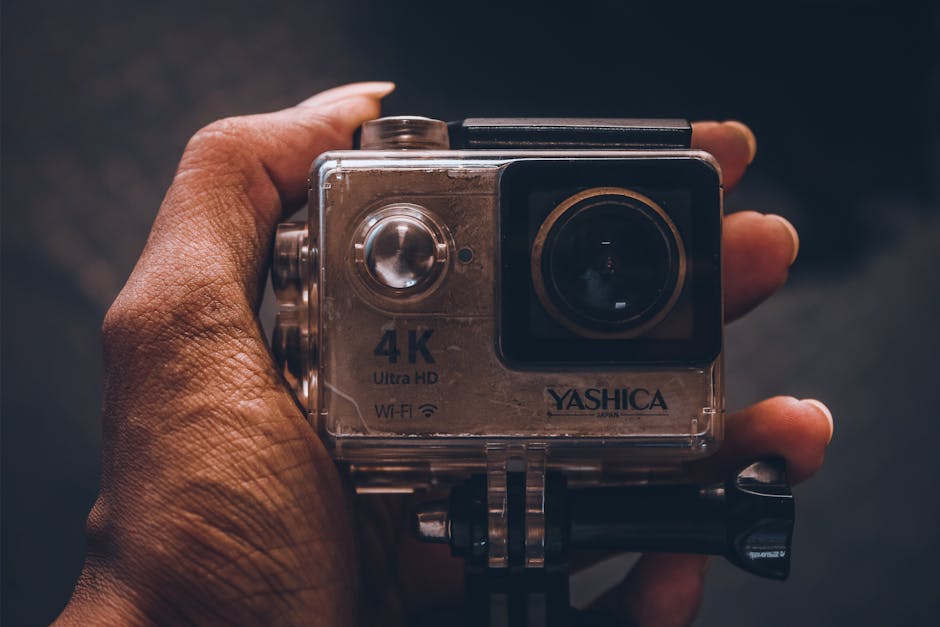
Wi‑Fi is where most in-camera attacks start because pairing is often fast and people are in a hurry. If you get Wi‑Fi right, the rest gets easier.
Attackers don’t need to break encryption. They just need you to connect to the wrong thing or log into the wrong account.
Use the right transfer method (and turn off auto-sync)
When possible, skip Wi‑Fi transfer during the shoot. Use a card reader and copy to a laptop later. It’s slower, but it cuts out a whole group of risks.
If you need Wi‑Fi (like to deliver selects during events), do it in a controlled way:
- Turn Wi‑Fi on only when you need it.
- Pair to one phone or one laptop, not multiple random devices.
- Disable auto-upload while you’re still shooting.
- After transfer, disable Wi‑Fi again.
Auto-upload is the feature that often causes the worst surprises. It can push photos to cloud or sync apps before you’ve reviewed access settings.
A simple pairing checklist I use on events
This is what I do every time I set up transfers during a wedding or conference:
- Forget previous camera connections on my phone (delete old pairings).
- Confirm the Wi‑Fi network name the camera creates matches what I expect.
- Use a dedicated transfer phone when possible (one device for camera media).
- Keep the phone’s lock screen on, with a PIN or passcode.
- After transfer, turn off camera Wi‑Fi and close the transfer app.
I also keep a note on the phone with the current SSID name and pairing steps. Sounds nerdy, but it prevents “panic reconnect” on a deadline.
Protect Accounts Linked to Your Camera
Your camera might be secure, but your accounts can still get taken over. In-camera security includes the accounts your camera signs into, like cloud storage and photo backup services.
Most photographers only secure the email they use for the cloud. That’s a start, but it’s not enough in 2026.
Turn on multi-factor authentication (MFA) on every connected account
MFA means you need more than a password to sign in—like a code from an app. It stops a lot of real-world theft because attackers usually steal passwords, not phones.
For the accounts connected to your camera (cloud backup, photo sharing, remote viewing), enable MFA using an authenticator app. Avoid SMS-only MFA when you can, because SMS can be intercepted.
Use unique passwords and review “active sessions”
Never reuse passwords between your email, cloud storage, and photo apps. If one site gets breached, the rest can fall like dominos.
Also check active logins. Many services show a list of devices signed in. If you see something you don’t recognize, sign out and change your password immediately.
Stop Ransomware from Touching Your Photos
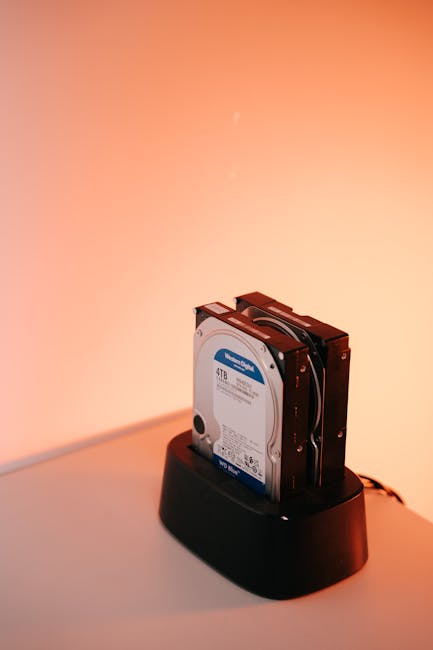
Ransomware protection is less about fear and more about placement. Ransomware usually wins when it can reach your only copies of files.
So you need backups that are cut off when the attack happens.
Use the “two-step backup” approach
I recommend a two-step flow that’s simple and works even during busy shoots:
- Primary copy: copy photos from the card to a main drive (like an SSD or a fast external HDD).
- Backup copy: after the shoot, copy to a second drive or offline backup that stays disconnected.
Ransomware often spreads through connected drives. Keeping your backup drive disconnected most of the time is a strong move.
What I do after a wedding (a realistic example)
After I return home, I do this within a few hours:
- Copy files from cards to Drive A.
- Verify files using checksums or photo software verification if available.
- Copy the same folder to Drive B.
- Disconnect Drive B until the next shoot.
That last step matters. If malware hits my laptop, it can’t encrypt a drive that isn’t plugged in.
In-Camera Theft Prevention: Make the Camera Hard to Monetize
Photo theft isn’t only about losing the camera. It’s also about how quickly someone can copy your images and how easy it is for them to use your storage accounts.
Thieves don’t want a locked device. They want the fast win.
Use physical and account-based protections together
Here’s the best combo I’ve found:
- Enable device lock (PIN/password if your camera supports it)
- Disable easy remote access unless you need it
- Remove or restrict memory card behaviors (don’t auto-sync to public links)
- Record serial numbers and keep proof of purchase
If your camera supports remote wipe or theft recovery features, turn them on and confirm the setup with your account. Some systems require extra steps and notifications.
Register your gear and keep a recovery document
This isn’t glamorous, but it helps. Write down:
- Camera model and serial number
- Lens serial numbers (if you can)
- Your purchase date and invoice info
Store it in a safe place (password manager or encrypted notes). If something goes missing, you’ll be glad you didn’t rely on memory.
People Also Ask: Quick Answers Photographers Actually Need
How can I lock down my camera’s Wi‑Fi so nobody pairs to it?
Turn off Wi‑Fi when you’re not transferring files, use the shortest pairing mode timer, and remove old paired devices from your phone. Also disable remote viewing features if you don’t need them during the shoot.
If your camera gives you a way to set a password for Wi‑Fi or pairing, use it. Default or blank pairing settings are the easy road for attackers.
Is it safer to transfer photos with a USB cable instead of Wi‑Fi?
In most cases, yes. USB transfers remove the “nearby connection” problem. The risk shifts to your computer security instead of nearby pairing.
For events, a card reader is often the safest and most reliable choice. For live delivery, USB plus a locked-down phone can be a good middle ground.
Can ransomware infect my camera directly?
Ransomware can’t usually “infect” a camera the same way it infects Windows computers, because cameras aren’t running the same software environment. The real risk is that ransomware hits your laptop or phone, then encrypts files in connected folders or drives.
That’s why disconnecting backup drives and copying card files carefully is so important.
What should I do if my cloud account connected to the camera gets compromised?
Act fast. Change your email password first, then change the cloud password, then sign out all active sessions. Turn on MFA if it wasn’t already on, and check for unauthorized devices.
After that, review where uploads went. I recommend creating a temporary quarantine folder on your computer and stopping new sync until you’re sure everything is safe.
Camera App Security: Don’t Blindly Trust Every Prompt
Most photographers use a camera companion app to view and transfer images. In 2026, these apps are common—and so are mistakes around them.
Follow this rule: if an app asks for permissions you don’t need, deny them. On a phone, focus on storage access, not contacts or location unless you need it.
App permission setup that reduces risk
- Turn off background data for the camera app unless you need it.
- Disable access to contacts and messages.
- Require device lock before the app can access the camera roll (where supported).
- Keep the app updated from the official app store.
I’ve also stopped using old app installs after a phone upgrade. A fresh install helps avoid weird permission states that build up over time.
Gear Choices That Help (Without Turning You Into an IT Person)
Some tools make in-camera security easier because they remove risky steps. You don’t need to buy everything, but a few upgrades can help a lot.
Here are practical options photographers use today.
Card readers and verified copying tools
A USB card reader is simple and fast. It also keeps the transfer step under your control.
If your workflow allows it, use software that can verify file integrity after copy. That reduces the “bad copy” problem, which is separate from hacking—but it prevents you from re-copying and accidentally mixing corrupted sets.
Dedicated “edit” and “transfer” devices
My strongest personal suggestion: use one laptop for editing and another device for transfers if you can. Even if you can’t afford a second laptop, you can still reduce risk by keeping your transfer phone clean and locked down.
Attackers love messy devices with lots of apps and shared logins. Clean devices win.
Practical In-Camera Security Checklist (Print or Save)
If you only save one thing, save this checklist. It’s built for real shoots, not a lab.
- Update camera firmware before the first big trip or event in 2026.
- Turn off Wi‑Fi and remote features when not transferring.
- Pair to one device and remove old pairings.
- Disable auto-upload until you confirm cloud settings.
- Enable MFA on cloud and photo-sharing accounts.
- Use unique passwords and check active sessions.
- Use card readers when you can; use USB if you must.
- Two-step backups: primary copy + offline/disconnected backup.
- Disconnect backup drives while editing to stop encryption spread.
- Keep a gear recovery record with serial numbers.
Connect This With Other Security and Workflow Posts on Your Site
If you want to go deeper, your audience will love pairing in-camera security with general photo safety. These are great next reads:
- Cybersecurity for Photographers (the main hub for threat prevention)
- Secure photo workflow tips (a good match for the backup approach)
- Memory cards and cloud transfer comparisons (helps readers choose safer options)
My Bottom Line: Treat Your Camera Like a Computer
Master in-camera security doesn’t mean you have to fear technology. It means you act like your camera can be a target, because in 2026 it can.
Turn off Wi‑Fi when you’re not using it, remove old pairings, stop auto-upload until you trust your settings, and keep backups disconnected from your main computer. If you follow the checklist above, you’ll reduce both photo theft and ransomware damage in the most direct way: by breaking the attacker’s path to your files.
Do that before your next shoot, and you’ll feel the difference the first time you transfer images without stress.
Featured image alt text (for your CMS): “Photographer using in-camera security settings to protect photos from theft and ransomware during Wi‑Fi transfer”