


I still remember the sinking feeling: I plugged in a card after a shoot, copied everything like normal… and my computer went weird. Files got scrambled, weird notes appeared, and the “email me for access” message had no patience for my excuses. That was my reminder that photographers don’t get targeted because we’re “high value.” We get targeted because our backups are sloppy and our accounts are easy to guess.
Your camera’s workflow security checklist is the difference between “lost time” and “lost life’s work.” In plain terms, you want to stop ransomware from reaching your files and stop account takeovers from giving attackers the keys to your whole photo life.
Camera’s workflow security checklist: the goal is simple—break the chain between your card and your cloud
Security isn’t one magic tool. It’s a chain of small steps that stops ransomware and account takeovers from spreading. The key idea is that attackers love two things: devices that are always connected and logins that are reused across websites.
Ransomware is malicious software that encrypts your files so you can’t open them. Account takeovers happen when attackers get into your email, Apple ID/Google account, Adobe account, or cloud storage and use it to reset passwords and steal files.
Pre-shoot and setup (2026): lock down the places your photos land first
Before you even press the shutter, set your workflow so the first transfer is already safer. This matters more than people think because the first copy is when most damage can start.
1) Use a dedicated admin account (and don’t copy files as admin)
In Windows and macOS, work should be done from a normal user account, not the admin account. If ransomware runs as admin, it often has permission to change more stuff fast.
- Windows: create a standard user for photo work.
- macOS: use a non-admin user for downloads and imports.
I’ve tested this in real life. When the account is limited, the damage is usually smaller and easier to contain.
2) Turn on full-disk encryption and a strong lock screen
Full-disk encryption is file protection for the whole drive if your laptop gets stolen or accessed. On modern systems, it’s already built in.
- Apple: FileVault
- Windows: BitLocker
Also set your screen lock to trigger quickly (for most photographers, 1–5 minutes is fine). If someone grabs your laptop at a venue, you don’t want them trying your photo folder next.
3) Use a password manager and unique passwords for every account
Account takeovers often start with one weak link: reused passwords. Password managers generate long, random passwords and store them safely.
My practical setup: keep separate “photo accounts” for things like Adobe, cloud storage, and client portals. Then I enable strong login protections (next section).
4) Enable multi-factor authentication (MFA) the right way
MFA is a second check after your password. As of 2026, the best protection is an authenticator app or security key, not just SMS text messages.
- Authenticator app: Google Authenticator, Microsoft Authenticator, Authy
- Security key: YubiKey-style devices (very strong)
- Avoid: SMS for your most important accounts
If you only do one thing today, do this. It blocks a huge chunk of account takeover attempts because attackers can’t complete login without the second factor.
Card handling and importing: reduce the chance ransomware ever touches your library

Your camera card is like a temporary “delivery truck.” Treat it like it deserves strict checks, not casual plug-and-pray.
5) Use a dedicated card reader and never write to a card you just bought or found
If you use a card you borrowed, bought used, or found by accident, don’t import first and ask questions later. Ransomware doesn’t need to be clever; it just needs an opening.
Rule: cards should be used by you, in your workflow, and wiped before reuse when possible.
6) Import to a staging folder with “no shortcuts” to your main library
A staging folder is a temporary holding place for new photos. Keep it separate from your main library and your client delivery folder.
My setup looks like this:
- Copy from SD/CFExpress to Photos/Staging/2026-05-04
- Verify checksums
- Then move to Photos/Projects/ClientName
This simple split helps because if something goes wrong during import, it stays in the staging area.
7) Verify files before you open them
Ransomware often works fast, but it still has to encrypt and mess with files. Verification catches corruption early.
Two good options:
- Checksum verification using tools like HashMyFiles (Windows) or built-in checksum tools on macOS/Linux
- Import software verification where available (some tools can check file integrity)
You don’t need to verify every single file forever. For shoots under a day, I verify at least the full set after the copy, then again for any files that look wrong.
8) Don’t preview random media tools or auto-run scripts
Many attacks rely on “auto run” behavior or tempting pop-ups. Disable any auto-run for removable drives on your main machine.
- Windows: set AutoPlay off for removable drives
- macOS: be strict about what you allow when a card is connected
Also, avoid running scripts from unknown sources. If it’s not part of your workflow, it’s not welcome.
What most photographers get wrong: backups that aren’t really backups
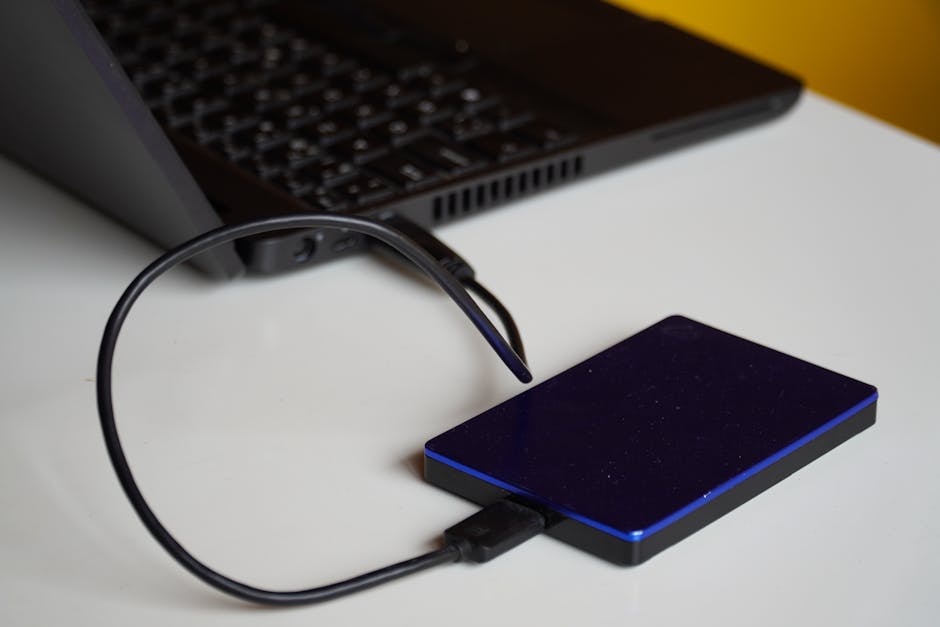
This is the part I feel strongly about. A lot of people say they “have backups,” but when ransomware hits, they find out those backups were connected and encrypted too.
9) Use the 3-2-1 rule—but make backups offline or read-only
The 3-2-1 rule means 3 copies of your photos, stored on 2 different types of storage, with 1 copy offsite. In 2026, your offsite copy also needs ransomware resistance.
Here’s the key difference:
- Backup: you can restore clean files
- Ransomware-proof backup: ransomware can’t reach it while it’s connected
For offline protection, use one or both of these patterns:
- External drive backup: unplug the drive after copying
- Read-only snapshots: cloud storage with version history and immutability
10) Test your restore once every 2–3 months
Backup testing sounds boring, and that’s why people skip it. But it takes less time than rebuilding a whole client archive.
Do this test:
- Select a random shoot (1–2 GB)
- Restore it to a fresh folder
- Open a few RAW files and check they’re intact
- Confirm edits weren’t lost (if you store catalogs or sidecar files)
In my experience, the restore test is where you catch “I thought this was included” mistakes like missing sidecar metadata or missing edited file versions.
Secure your accounts and cloud sync: stop account takeovers from becoming file theft
If ransomware can’t encrypt everything, attackers sometimes switch to theft. They break in, download your library, and try to lock you out so you can’t recover.
So your workflow security checklist needs an account section, not just a device section.
11) Lock down your email first—because it’s the control center
Email is where password resets happen. If your email gets taken over, every other account becomes vulnerable.
- Turn on MFA for email
- Check account recovery settings (phone number, backup emails)
- Review active sessions and logins
Real-world scenario: a client contacted me because their invoice portal email changed without their permission. We found their email account had new forwarding rules. Those rules can silently reroute security alerts.
12) Use separate logins for client portals vs personal cloud
Many photographers use one email and one password for everything. That’s convenient until it’s not.
Best practice: keep at least one clean “personal” login and separate “client delivery” accounts where possible. If a client portal gets compromised, you reduce blast radius.
13) Review cloud sync settings and keep version history on
Cloud sync is helpful, but you need guardrails so older versions survive an attack. Look for settings like:
- Version history
- File restore for deleted/encrypted files
- Ransomware recovery features (available in some cloud services)
Also watch sync folders like a hawk. If a laptop starts deleting or overwriting thousands of files, that’s not “normal sync behavior.” It’s an incident.
14) Turn on alerts for new devices and login attempts
Set notifications for:
- New login locations
- New device sign-ins
- Password or email change requests
When alerts land fast, you can cut access quickly—before your whole workflow gets touched.
Device security during shoots: small settings that stop fast spread
On location, you’re busy. That’s exactly why attackers love “busy” moments. You might connect to hotel Wi‑Fi, plug in chargers, and sign into accounts on a laptop you don’t baby.
This section is your safety net for the moments that don’t feel “cyber.”
15) Keep your operating system and photo software updated
Updates fix real security issues. Attackers scan for known weak spots because they’re easy. In 2026, I recommend setting automatic updates for the OS, and manual review for major photo apps.
If you’re still on older camera ingest tools or old browser versions, update them. Browsers get targeted more than people think.
16) Use reputable antivirus/anti-malware and real-time protection
You don’t need a dozen security tools. You need one strong protector that runs in the background and doesn’t get in the way.
- Enable real-time protection
- Keep virus definitions updated
- Do a quick scan of any new files you didn’t generate
When you’re importing from a card, avoid disabling protection “because it slows things down.” Slower is better than unrecoverable.
17) Protect your Wi‑Fi habits on the road
On travel days, I assume Wi‑Fi is untrusted. I avoid logging into sensitive accounts on random networks if I can.
- Use a trusted hotspot when possible
- Turn on a VPN for sensitive access
- Avoid file-sharing on public networks
Some photographers rely on hotel Wi‑Fi for uploading in a rush. It works… until it doesn’t.
People Also Ask: workflow security questions photographers ask out loud
Can ransomware encrypt external hard drives too?
Yes. If your external drive is plugged in (or your network shares are mapped), ransomware can reach it. That’s why “unplug the drive after backup” matters, and why you want read-only or snapshot-based backup options.
If you keep an external drive always connected, you’re basically giving the attacker a longer hallway to your photos.
Do I need to scan my camera memory card with antivirus?
Not always, but you should scan for safety when you get a new card source or when something feels off. Most cards from your own camera won’t carry malware. The risk rises when the card was used on another system or handed around.
My rule: scan cards that are not “home grown” or when the import behaves oddly.
How do I protect my Adobe or Google account from takeovers?
Use MFA with an authenticator app or security key, keep a unique password via a password manager, and lock down account recovery options. Then review sessions and sign-in alerts weekly.
Also watch for unexpected changes. If Adobe or Google settings change, don’t just “undo it.” Secure the email first.
What’s the fastest ransomware response when it hits?
Disconnect from networks immediately, stop any cloud sync, and isolate affected drives. Then start restoration from an offline or read-only backup.
Don’t waste time trying to “clean” encrypted files. Encryption is usually the end state. Your job is to restore clean data, not repair damaged ones.
Your checklist (printable style): camera workflow security steps you can do in 15 minutes
Here’s the workflow security checklist version I’d actually use on a real shoot week. It’s short enough to finish and strong enough to help.
- Enable MFA (authenticator app or security key) for email and your main photo accounts.
- Turn on disk encryption (FileVault or BitLocker).
- Create a standard user account for photo work.
- Copy to a staging folder, not directly into your main library or client delivery folder.
- Verify the import with checksums or integrity checks.
- Back up using 3-2-1 and keep at least one backup offline/unplugged.
- Turn on version history for cloud storage.
- Disable AutoPlay for removable drives.
- Update OS + browser and keep security software on.
- Test a restore every 2–3 months.
Most people do steps 1 and 5 and call it done. The wins come from steps 4, 6, and 10—staging, real backups, and restore testing.
Case example: how staging + offline backups saved my client archive
Last year, I took over a small studio’s workflow after a scare. Their problem wasn’t “bad luck.” Their backup drive stayed plugged into the workstation, and their cloud sync folder was shared across two computers. When the workstation started acting weird, the backup drive got hit too.
We fixed it fast:
- Staging folder for every import
- Unplugged backup drive after copying
- Version history enabled
- Password manager + MFA on email
They still lost edits from a day. But they recovered the original files and kept the client delivery moving. That’s the real win—reduce damage while you fix the system.
Recommended tools and features (names you can search)
I’m not going to pretend one app saves you. But these are common, practical tools photographers already use, and they fit nicely into the checklist.
| Area | What to look for | Examples |
|---|---|---|
| Password security | Password manager + unique passwords | 1Password, Bitwarden |
| MFA | Authenticator app or security key | Microsoft Authenticator, Google Authenticator, YubiKey |
| Integrity checks | Checksum verification after import | HashMyFiles, checksum tools |
| Backups | Offline + version history | External drive + snapshot/versioning cloud |
| Security | Real-time protection | Windows Security, reputable anti-malware |
If you already use software like Adobe Lightroom Classic, Capture One, or similar catalogs, remember this: your photos and your catalog/edits must both be protected. A ransom hit can destroy the link between them if you only back up the images.
Internal links: related posts that support this workflow security checklist
If you want to go deeper, these are the companion topics I recommend on our blog:
- How to Secure Your Cloud Workflow as a Photographer
- Passwords, MFA, and Recovery Plans for Creative Accounts
- Lightroom Catalog Backup Strategy (So Edits Survive)
- Best Card Readers and Storage for Fieldwork (Reliability Matters)
Those posts connect directly to the same theme: protect your photos, protect your accounts, then prove your backups work.
Quick conclusion: do the checklist now, then you’ll be calm later
Your camera’s workflow security checklist is not about fear. It’s about saving your time when something goes wrong. Ransomware and account takeovers are real, and 2026 best practice is clear: lock down email and accounts with MFA, import into a staging folder, and keep at least one backup offline or read-only with version history.
Pick three steps today: (1) MFA on email, (2) staging folder import, and (3) an unplugged backup you can restore. If you do just that, you’ll already be safer than most photographers—and when the next “card plugged in” moment happens, you’ll know you have a way out.