

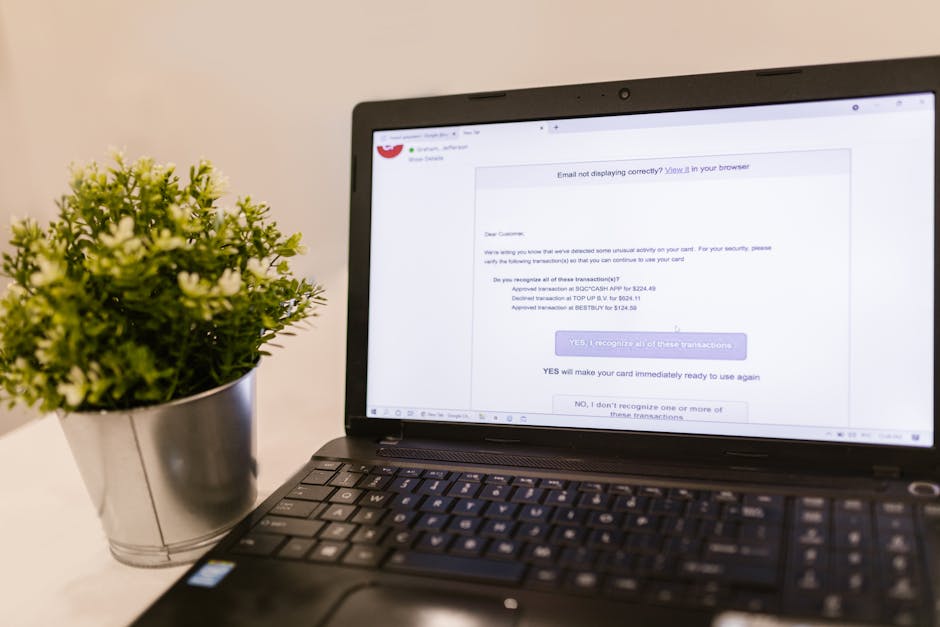
Last month I got a “client invoice” email that looked so real I almost grabbed my credit card. The message had my client’s name, a matching logo, and even a “payment due today” line that fit the job. Then I noticed something tiny: the link didn’t go to the company’s real billing page. That’s how phishing attacks targeting photographers usually work—small details, fast urgency, and just enough truth to make you move without thinking.
Here’s the fast answer: treat every urgent message about money, files, or login access as suspicious; verify the sender and the link host before you click. In practice, that single habit stops most real-world phishing attempts.
What phishing attacks targeting photographers really are (and why we’re easy targets)
Phishing is a scam that pretends to be a real person or company so you’ll give up something—usually your login, your card info, or your files. For photographers, the hook is often work-related: gallery delivery, client billing, a cloud share, or “your images are ready.”
In 2026, attackers know we live in a stack of accounts: email, cloud storage, e-sign tools, booking systems, and sometimes website dashboards. If they can trick you into logging in on a fake page, they don’t need malware. They just need your password.
One more detail people miss: photographers often work late and travel for shoots. That means fewer people do a careful “pause and check” before clicking. Phishing counts on that tired-mind effect.
Common phishing lures photographers get every week
If you want to spot phishing fast, focus on the patterns. Most phishing emails follow a few scripts, and they’re very consistent.
1) “Client invoice” and “payment due now” emails
This is the classic. The email claims you owe something or a payment is required before a session or gallery link is sent. The scammer adds urgency words like “final notice,” “overdue,” or “today at 5 PM.”
Real-world tactic: The message uses a real-looking PDF name (example: Invoice_12048.pdf) and tells you to “review and pay.” The file download is either a fake invoice page or it installs something if you run it.
Quick check: Don’t open attachments from new senders. Instead, copy the “From” email address and check the domain. Then type the company name into Google and find the official contact method.
2) “Share your gallery” links from “Dropbox,” “Google Drive,” or “WeTransfer”
You get a message saying the client shared a folder with you or the client’s gallery is ready. The email includes a link that looks like a normal file share.
What most people get wrong: They check the link text, not where it actually goes. Attackers can make the visible text look right while the real URL points somewhere else.
Fast spot: On desktop, hover your mouse over the link and look at the real address. On phones, long-press links and check the preview URL.
3) “E-sign needed” or “model release” documents
Photographers handle releases all the time. Phishers know that and use it as a reason to send a document request.
Real-world tactic: They send a message “We received your release request” and ask you to sign. The link leads to a fake DocuSign-like page that steals your login or payment details.
If you ever receive a release request that doesn’t match how your real workflow works, stop. Verify through your normal process, not the email.
4) Booking and scheduling scams (Calendars, calls, “reschedule”)
Another common one: “Your appointment is confirmed” or “Reschedule now.” The email often uses a familiar calendar look, then pushes you to a login or a form.
Fast spot: If it asks you to “confirm your account” or “verify your email,” treat it as phishing. Real scheduling tools usually don’t ask for a password after you already use the account.
Real-world phishing tactics used against photographers in 2026
Attackers don’t just send one bad email. They try multiple angles, often in the same week.
Brand mimicry: logos, fonts, and “real” formatting
In 2026, scam messages look cleaner than older ones. They copy logos from your clients, your gallery provider, or tools like Adobe, Canva, or cloud apps.
Here’s what I’ve learned the hard way: a perfect logo doesn’t mean it’s safe. The content can still be a trap. Always check the sender domain and the link host.
Domain tricks: the tiny changes you won’t notice at speed
Instead of going to example.com, they use a lookalike like examp1e.com (a one instead of an l), or they add a word like example-support.com.
If you want a quick rule: trust only the exact domain you already use with that company. If it’s close but not exact, it’s suspicious.
Reply-chain attacks: “Re:” replies that feel like your conversation
Some scams send an email that looks like it’s part of a past thread. It might say “Following up on your invoice” and include a link inside.
My experience: I’ve seen these come in right after I send a real email. The attacker is trying to blend in. If the link is new or the sender is odd, verify.
QR-code payment requests at events
This one surprised me. At a busy shoot or conference, a scammer prints a “payment” card with a QR code. The code goes to a page that steals card info or asks you to log in.
If you’re asked to pay by scanning a code you weren’t given by your client’s usual method, pause. Use your usual invoice method or confirm by text/call from a known contact.
How to spot phishing fast: the 60-second checklist I use before clicking

This is the part that actually saves you. Spend 60 seconds and you’ll stop most phishing scams cold.
- Check the sender domain, not the display name. Display names can be faked. Real domains can’t be faked without changing the actual address.
- Hover the link (or long-press on mobile). Look for the real host. If it doesn’t match the service you expect, don’t click.
- Read for urgency. “Pay today,” “final notice,” or “view before it expires” is a common phishing trigger.
- Look for mismatched details. Wrong date, wrong amount, or wrong project name is a red flag—even if the logo looks right.
- Ask one question out loud: “Would this request come through my normal workflow?” If you don’t usually get approvals by link in email, that’s your clue.
When I’m traveling, I don’t use guesswork. I open my phone email, but I verify links on a different step: I check the sender address first, then I verify the domain by searching the official website in my browser history or bookmarks.
People Also Ask: phishing and photographer safety
How can photographers prevent phishing attacks?
Use three layers: better email filtering, safer logins, and a clear “don’t click first” rule. In plain terms: set up multi-factor authentication (MFA) on your email and cloud accounts, keep your password manager updated, and teach yourself to verify links before opening them.
I also recommend you keep a “trusted contacts” list for clients. If an email asks you to pay or sign and it’s not coming from your usual contact trail, treat it like a scam until verified.
What should I do if I clicked a phishing link?
- If you entered a password: change it right away on the real site.
- Check for session access: log out of other devices if your provider lets you.
- Run a quick security check: review recent sign-in activity.
- Turn on MFA: if it’s not enabled, enable it immediately.
- Contact affected clients: if the scam could reach them through your email.
Time matters here. Attackers can use stolen access fast. If you want a timeline: in the first 15 minutes, change passwords and check sign-in logs.
Can phishing emails steal my photos?
Yes. The most common way is account takeover. If a scam steals your cloud login, it can pull folders, download images, or share them publicly. Some scams also target your website or gallery dashboard.
That’s why MFA matters. If someone gets your password but not your second factor, they often can’t take your files.
Are text-message scams (SMS) common for photographers?
They’re growing. SMS phishing often leads to a login page or a “photo proof” link. Since you’re on your phone during shoots, it feels fast and harmless.
My rule: if a text link asks you to “verify” or “log in,” don’t use the link. Open the app or type the site address manually.
Step-by-step: secure your photography stack against phishing
You don’t need fancy tech. You need correct settings and a habit.
1) Turn on MFA everywhere it matters
Start with email, then your cloud storage, then your photo gallery and website admin accounts. MFA is a “second lock” on your account (usually an app code or a hardware key).
As of 2026 best practice, look for MFA methods that aren’t just SMS. SMS can be intercepted. If your provider supports authenticator apps or security keys, choose those.
2) Use a password manager and unique passwords
A password manager stores your logins so you don’t reuse passwords. Reuse is how one breach becomes many.
Practical setup I recommend: use one strong master password, store unique passwords for each account, and enable the “security alerts” feature if your manager offers it.
If you already use a manager, still check your oldest accounts. It’s common to have a few logins that were created before you tightened security.
3) Reduce “click risk” with email and browser settings
Here’s what I do on my work accounts:
- Turn on safe browsing and phishing protection in your browser.
- Block automatic downloads when possible.
- Use a separate email for public contact (some people do “studio@” and keep “billing@” private).
This doesn’t stop every scam, but it reduces how often you land on a dangerous page.
4) Add a client verification rule for money and releases
Create a simple rule and follow it every time:
- No payment links from email unless you’ve used that exact link method before.
- No signature request unless it matches your normal tool and sender domain.
- Confirm by one channel you trust (like a phone call or a known client text thread).
This is where photographers often get hit: a real client asks for a change, and the scammer tries to imitate that request.
Comparison: common “safe-looking” tools vs. where phishing slips in
The trick with phishing is that it blends into normal tools. Below is a quick comparison of where scams fit best.
| Tool/Service | What phishers try to mimic | Fast red flag |
|---|---|---|
| Cloud storage (Drive/Dropbox) | Shared folder links | Link host doesn’t match the real service domain |
| Photo sharing (gallery links) | “Your gallery is ready” pages | Asks for login where you usually can view without it |
| Doc signing (DocuSign-like) | Model releases and contracts | Requests password or card info after “sign” |
| Accounting/invoices | Invoice PDFs or payment portals | Urgent payment deadline + new sender domain |
| Scheduling tools | Reschedule or confirm requests | Asks to “verify account” via link |
Keep this idea in mind: phishing usually isn’t a random attack. It’s a targeted match to what you already do in your workflow.
Case-style scenarios: how these scams play out during real shoots
Here are a few stories based on patterns I’ve seen from photographers. Use them like training scenarios.
Scenario 1: The “gallery link” that appears after a call
You meet a client, they promise to send the final gallery. Later, you get an email with a link and “your gallery is ready.” The link looks like a known gallery service.
You click from your phone because you want to check quickly. Then you notice the page asks for your email login. That’s the moment you realize it’s phishing.
Fix: Don’t enter credentials on that page. Close it. Instead, open the real gallery app/site by typing its address or using your saved bookmark.
Scenario 2: The invoice PDF that comes from a “new” address
You get a PDF named like a real invoice. It says payment is due and asks you to confirm your bank details. The sender address is almost right, but one letter is off.
Fix: Ignore the attachment. Go to your real invoice system (where invoices should appear) or message the client using the contact you already trust.
Scenario 3: The “model release” doc while you’re on location
You’re in the field. A text or email comes in saying you have a release to sign. You’re tired, you want to clear it fast, so you tap.
Fix: Sign only in your normal signing tool. If your tool is DocuSign, don’t sign on a site that looks “DocuSign-ish” but isn’t your real domain.
Tools that help (and which ones don’t)
I like tools because they save time. But I also want you to know what they can’t do.
Email filtering and safe browsing
Most email services now have phishing detection. That’s helpful, but it’s not magic. I’ve still received phishing emails that passed filtering—especially when the sender uses convincing formatting.
Turn on browser phishing protection and keep your browser updated. Those small steps cut down on harmful pages.
Password managers
A password manager reduces mistakes and helps you avoid password reuse. It also makes it harder for scammers to trick you into reusing the same credentials across sites.
However, it won’t protect you if you willingly type your password into a fake login page. Your best defense is still the link and sender check.
Security keys and authenticator apps
If your accounts support security keys (hardware tokens) or authenticator apps, use them. They make account takeover much harder for scammers.
Small note: security keys require a tiny bit of setup. If you’re not ready, start with authenticator apps and upgrade later.
Internal links: related guides on protecting your work
If you’re already thinking about tightening security, you’ll probably like these related posts on our blog:
- 2FA Checklist for Photographers: Set It Up in Under 10 Minutes
- Ransomware and Photo Backups: The 3-2-1 Setup Photographers Actually Use
- A Safer Client Delivery Workflow: Galleries, Links, and Access Controls
- 2026 Imaging News: New Threats and What Changes for Creators
Bottom line: your best defense is a fast, repeatable verification habit
Phishing attacks targeting photographers don’t usually start with “something weird.” They start with something familiar: invoices, gallery links, model releases, or scheduling messages with urgency. That’s why they work.
Make the 60-second checklist your default. Check the sender domain. Hover the link. Look for urgency and mismatched details. If anything feels off, verify using your normal workflow—not the email’s instructions. If you do that every time, you’ll stop the majority of scams before they can touch your accounts or your client files.
Action you can take today: turn on MFA for your email and cloud storage, then add one rule for money/signatures: no payment or signing links from email until you verify the sender and the link host.
Featured image alt text suggestion: “Photographer reviewing suspicious email phishing link before clicking, 60-second security checklist”