

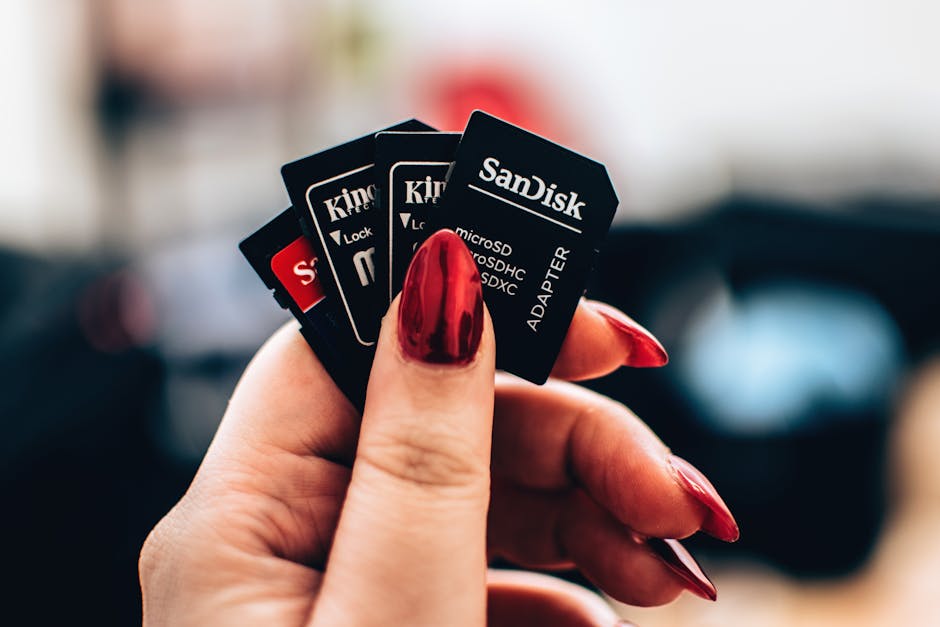
If you’ve ever lost a full day of shoots because a hard drive failed or ransomware locked your folder, you already know the scary part: it’s not the camera. It’s the file trail after you press the shutter.
Secure Your Photo Archives by locking down your RAW files, client folders, and delivery workflows with simple habits that actually hold up in 2026—especially when you’re tired, busy, or working on a deadline.
What “protecting RAW files” really means (and what most people miss)
Protecting RAW files isn’t just about antivirus. RAW storage security includes who can access your files, where they live, and what happens if your computer or cloud account gets hit.
RAW files are the original camera data. They usually include metadata (EXIF) like date, camera model, and sometimes GPS info. That metadata can be sensitive, and it’s also easy to leak when you share the wrong folder or export setting.
Most people get this wrong in three common ways. They (1) back up only one place, (2) trust “sync” folders without real versioning, and (3) keep client work in the same drive as everything else.
Here’s the core idea I use in my own workflow: treat your RAW archive like a server room, even if it’s just a couple of external drives and a laptop.
Build a RAW storage plan: 3-2-1 backup plus a “known good” restore test
A real backup plan gives you recovery, not just extra copies. In photography terms, that means you can restore the exact shoot (original RAW, previews, edits, and delivery exports) when something goes wrong.
Use 3-2-1: 3 copies of your data, on 2 different types of storage, with 1 copy offsite. For photographers, this often looks like: internal SSD + external HDD/SSD + cloud or another location.
But there’s one step people skip: a restore test. I do this every 60–90 days. I pick one random shoot folder and restore it to a different computer (or at least a clean test folder) to confirm files open correctly.
To make it practical, write down these items for every client archive:
- Where the RAW master files live
- Where previews and edit exports live
- Where the backups live (and whether they’re offline or online)
- How you verify the restore (for example: open in Lightroom/Camera Raw and check file size and timestamps)
Why the restore test matters: I’ve seen backups that “completed” but contained broken files because the source drive had errors or a sync app skipped specific file types.
Recommended backup setup for photographers (simple and effective)
Below is a setup that works for many shooters, from small studios to solo freelancers. I’ll keep it boring on purpose because boring setups survive chaos.
| Data you keep | Best location | Backup idea | How often to verify |
|---|---|---|---|
| Camera RAW (originals) | External drive or NAS (fast, consistent) | Offline backup + cloud backup (not just sync) | Every 60–90 days |
| Previews (JPG/sidecar) | Same folder as RAW with clear structure | Cloud + offline | Every 60–90 days |
| Edits (XMP/sidecar or DNG copies) | Catalog/Project storage with consistent path | Backup the catalog files too | After major editing changes |
| Client delivery exports | Delivery-ready folder only (no extra junk) | Cloud or offline archive | After each delivery |
What about “sync” folders like Dropbox/Google Drive?
Sync can be great, but it’s not a full security plan. If ransomware hits and it syncs your changes, it may encrypt and upload the damage.
If you use sync, turn on file history/versioning and consider “offline” or “snapshot” style backups too. In 2026, version history matters because it’s your time machine if something bad happens.
Secure Your Photo Archives at ingestion: from card to folder without surprises
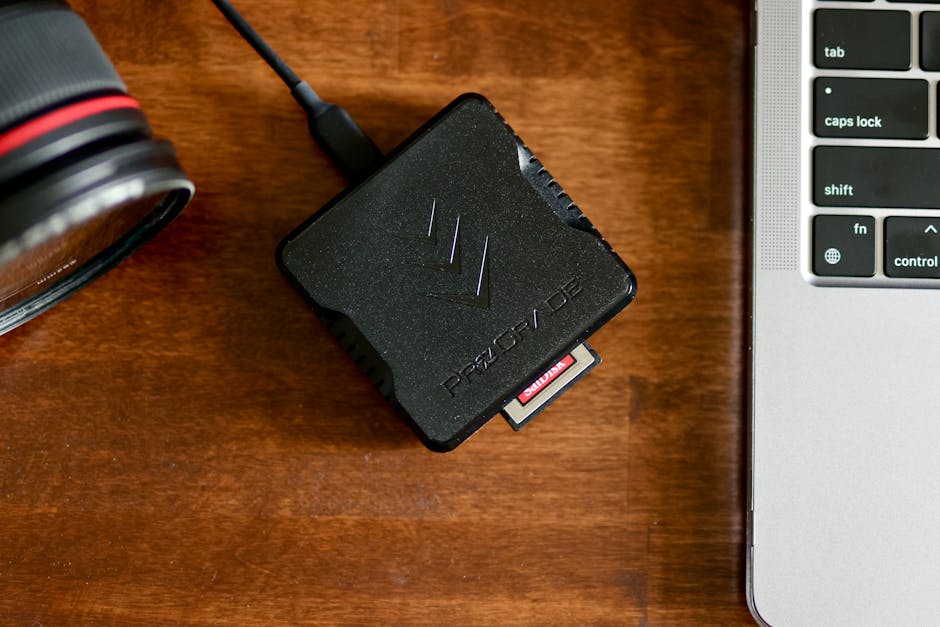
The safest security move happens before your files ever touch your main computer. Card ingestion is where you control names, folder paths, checksums, and access rights.
When I copy from SD cards, I do it in this order every time:
- Insert card into a card reader.
- Copy to a dedicated “Ingest/To Archive” folder.
- Verify files (simple checks like file count and size, plus checksum if you use tools that support it).
- Only then move files into the client’s final RAW folder.
It’s tempting to skip steps when you’re on a schedule. The problem is that one missed file can turn into an angry client, or a painful re-shoot.
Choose a folder structure that reduces mistakes
A good folder structure makes sharing safer and editing easier. It also helps you keep client data separate from your personal photos.
I use a structure like:
- ClientName_YYYY-MM-DD_Event
- RAW
- Previews
- Edits (or Originals + Sidecars)
- Delivery
Keep RAW in a folder that delivery apps don’t automatically scan. That way, you reduce the chance of the wrong folder getting uploaded or emailed.
Turn off auto-run and keep “import” tools locked down
Auto-run and autorun prompts can be risky because a malicious file on a card can trick a system into running something. In plain terms: don’t let the card decide what runs on your computer.
Also, avoid running scripts or random third-party “import” tools that you downloaded from somewhere unknown. Stick with well-known software you trust, and keep it updated.
Ransomware defenses for photographers: stop encryption before it spreads

Ransomware is the biggest reason I push photographers to separate folders and lock down permissions. It’s malware that encrypts your files, and then demands payment.
Here’s the hard truth: if ransomware gets admin access on your laptop, it can often encrypt the same drives your backup lives on.
So the goal is to build barriers. Not perfect barriers—real ones that reduce damage.
Practical ransomware prevention checklist (2026-ready)
Use this list like a pre-flight check. If you do it once, you’ll remember it when you’re stressed.
- Use a non-admin account for daily work on your editing computer. Admin rights are like giving the burglar the key ring.
- Enable OS security features such as Microsoft Defender (Windows) or built-in protection (macOS). Keep them on.
- Patch regularly: keep Windows/macOS and your photo apps updated. Security updates happen all year.
- Turn on ransomware protection / controlled folder access (where available). This blocks untrusted apps from changing protected folders.
- Separate backup storage so backups aren’t online all the time. Offline backups should be physically disconnected sometimes.
- Disable macros in email downloads and avoid opening unknown attachments. Your clients can email you malicious junk too—scammers spoof real addresses.
One real-world scenario I’ve seen: a photographer opens an “invoice” PDF from a customer email thread. The file name looks normal, but it’s bait. The system gets hit, and because the backup drive is always connected, the malware encrypts that too.
This is why “offline backup” isn’t just a buzz phrase. It’s the difference between recovering in an afternoon and starting over.
What about “cloud backups” if ransomware hits?
Cloud backup can still help, but it depends on the setup. You want versioning and protection that keeps previous file versions safe.
If your cloud is set up as a simple mirror, ransomware can upload the encrypted versions. If it keeps file versions and supports restore to an earlier point, you have a real way back.
For cloud, check whether your service supports:
- Version history
- Restore to an earlier date
- Independent backup jobs (not just sync)
- Strong account security (2FA)
Lock down access: client confidentiality and safer sharing
Your photo archives aren’t just about your gear. They include private client work—sometimes weddings, families, homes, or business assets that clients can’t afford to leak.
Access control is the easy win. It makes both theft and accidental leaks less likely.
Passwords, 2FA, and device security that actually matters
Use a password manager. It’s not about being fancy; it’s about not reusing the same weak password across everything.
Turn on two-factor authentication (2FA) for your email and cloud storage. 2FA means even if someone guesses your password, they still need a second proof.
For device security:
- Enable full-disk encryption (BitLocker on Windows, FileVault on macOS).
- Use a screen lock that turns on quickly (like 1–5 minutes).
- Don’t share your login for “convenience” with assistants. Create separate accounts instead.
Share the right thing at the right time
Client delivery is where leaks happen. If you share the wrong folder, you can accidentally send RAW files or full-resolution images before a contract deadline.
My rule: delivery folders should only contain what you plan to deliver. RAW stays in RAW and doesn’t mingle with export folders.
If you use gallery links, set them to expire when appropriate. And always check the link permissions before you send.
Encryption for RAW files: when it helps and when it slows you down
Encryption is one of the best protections for lost devices and stolen drives. It turns your data into unreadable content for anyone who doesn’t have the key.
But encryption has a trade-off. If you encrypt large external drives, you’ll see slower copy speeds and extra steps when you connect the drive.
That’s fine. For RAW archives and client work, it’s usually worth it.
My practical encryption approach
I use encryption for:
- Laptops and main computers (full-disk encryption)
- External drives that hold client RAW archives
- Any “travel drive” I bring to shoots
I avoid encrypting everything if it breaks my editing flow. For example, if a drive is just for short-term scratch files and I have a fast backup job, I may keep that simpler. But once it becomes “client archive,” encryption goes on.
What encryption does NOT fix
Encryption won’t save you from ransomware if the files are already unlocked while you edit. It also won’t stop you from accidentally uploading the wrong folder to the wrong link.
So encryption is a layer, not the whole plan. Your full security approach should include backup testing and access control.
Use tools wisely: Lightroom/Photos workflows and secure catalogs
Photo software catalogs can contain edit data and links to originals. If your catalog gets corrupted or you move folders without matching paths, you can lose your edit history and end up reworking everything.
This is a security and reliability issue, not only an editing issue.
Protect your catalog and sidecars like they’re part of the archive
If you use Adobe Lightroom Classic, your catalog file is the control center. The safest move is to treat the catalog like you treat the RAW folder: backup it and protect it.
If you use Capture One, your sessions and catalogs matter the same way. In plain terms: your edits are only safe if the program can find the originals.
Here’s a habit I recommend after every client gallery is finalized:
- Confirm RAW folder path hasn’t changed.
- Back up the catalog/session files.
- Create a final “Delivery” export folder and leave RAW alone.
If you’re also reading gear reviews on this site, you may like our guides on storage options. For a wider take on drives and workflows, see storage drive choices for photographers (this helps you pick hardware that doesn’t create new risk).
People Also Ask: quick answers to common security questions
How do I secure RAW files on an external hard drive?
Encrypt the drive, set the folder permissions to only your user account, and keep the drive disconnected when you’re not actively copying. Then use backups with version history so you can recover if files get changed or encrypted.
Should photographers store client photos on cloud storage?
Yes, many photographers do, but not as your only backup. Cloud storage is great for quick access and sharing, and it can include versioning. For safety, pair it with an offline or separate offline-style backup.
Can ransomware reach my photos if I’m not clicking anything?
Yes. Some ransomware spreads through network shares, malicious links, or infected software updates. That’s why keeping your system updated and using controlled folder access matters even when you feel careful.
What’s the best way to prevent accidental leaks to clients?
Use separate folders for RAW, edits, and delivery. Only upload from the delivery folder, and use link permissions and expiry dates. Also, double-check the resolution and file type before you send the gallery link.
Security audit you can do in 30 minutes (do it this week)
You don’t need a big IT budget to make real improvements. You need to look at your setup and fix the obvious weak spots.
Here’s my 30-minute audit. Set a timer and go in order.
- List your archive locations: where are RAW files stored right now (exact drives/folders)?
- Check backup count: how many copies exist, and where are they?
- Test one restore: pick one recent client folder and restore it to a test location.
- Check encryption: is your laptop full-disk encrypted, and are archive drives protected?
- Check user accounts: are you working as admin all the time?
- Turn on 2FA for email + cloud storage.
- Verify permissions on shared folders and external drives.
If you find you only have one copy, fix that first. If you find your backup drive is always connected, change that next.
A quick comparison: safer vs riskier photo archive setups
Sometimes it’s easier to spot the weak link by comparing setups side-by-side. Below is how I’d grade common approaches in 2026 for client work.
| Setup | Pros | Risks | My take |
|---|---|---|---|
| One external drive + no backup | Simple, fast | Drive failure = total loss | Not acceptable for client work |
| External drive + always-on sync | Convenient sharing | Ransomware can sync the damage | Better, but add versioning + offline backup |
| 3-2-1 backups with offline copy | Recovery-focused, real resilience | Needs planning and a little discipline | Best balance for most photographers |
| Cloud + no version history | Easy access | Accidental overwrite or encryption can’t be undone | Fix by enabling versions/restore points |
| Encrypted archive + tested restore | Good privacy + reliable recovery | Slightly slower workflow | My favorite for RAW and client confidentiality |
Real-life examples from the field (why these rules exist)
I’ve watched three problems play out for photographers. None of them were “rare.” They were boring, common issues—exactly the kind you want to prevent.
Example 1: the cracked-drive problem. A client delivery went out, but the RAW archive was only on one external drive. The drive failed later that week. Even though the edited exports were safe, the photographer couldn’t fix a color issue because the original RAW was gone.
Example 2: the shared folder mistake. A photographer had a shared “Clients” drive. When they tried to upload a gallery, they selected the wrong folder that included RAW. The link went to the client, and the client’s team downloaded more than expected. It wasn’t malicious—just a simple click.
Example 3: the always-connected backup trap. Ransomware hit a laptop. The external backup drive was connected for convenience. The malware encrypted both. The photographer had copies, but they were all encrypted versions too.
These stories are why I keep stressing the same themes: separate folders, protect access, and test restore. That’s the security that keeps you working.
Connect this to your broader workflow (so it sticks)
Cybersecurity works best when it fits your photography routine. If your security steps slow you down too much, you’ll skip them when you’re busy.
I recommend tying security actions to moments you already have: after ingest, after each shoot, after each client delivery, and then every 60–90 days for restore testing.
If you’re also thinking about gear choices, storage, and reliability, you can pair this with our category articles. For example, check imaging news updates for what’s changing in digital workflows, and tutorials & tech for practical setups that reduce mistakes.
Final takeaway: secure your photo archives with layers you can maintain
Secure Your Photo Archives by building layered protection: a 3-2-1 backup plan, verified restores, encrypted storage, strict access rules, and delivery folders that only contain what clients should see.
If you do just three things after reading this, do these in order: (1) set up proper backups with an offline copy, (2) enable 2FA and encryption, and (3) run a restore test on one real client folder within the next 90 days.
That’s how you protect RAW files and client work in a way you can actually keep up with—no fear, no guesswork, and way fewer “how did this happen?” moments.
Featured image alt text suggestion: “Photographer securing RAW photo archives with encrypted external drive and backup plan.”