

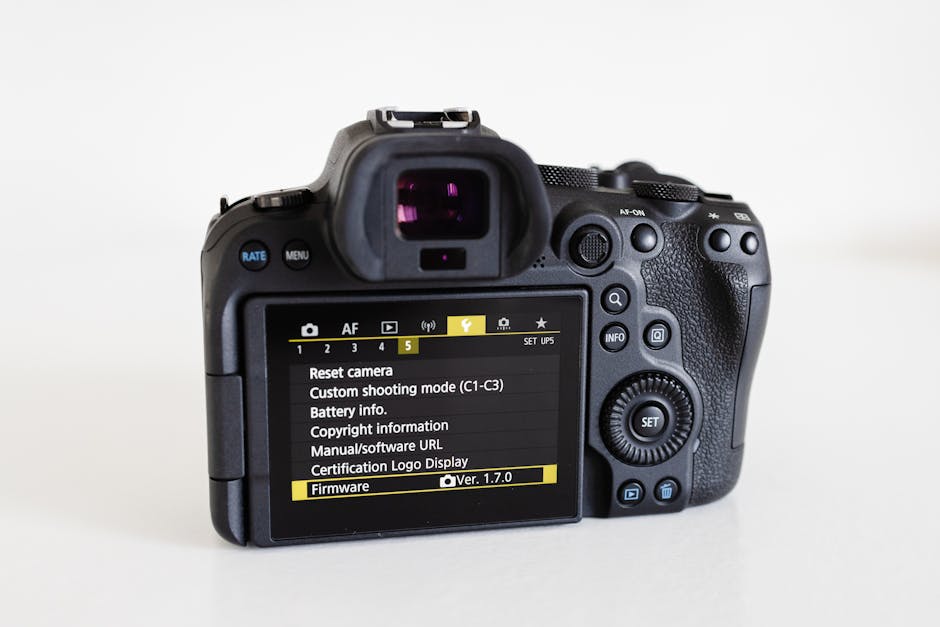
You know that sinking feeling when your camera screen says, “Updating firmware…” and you realize you’re doing it on 12% battery? I’ve had that moment twice—once with a lens and once mid-shoot—so I built a workflow that keeps settings intact and reduces risk to the point where it feels boring. That’s the real goal of Firmware Updates Explained: How to Safely Update Camera and Lens Software Without Losing Settings: upgrade confidently, not nervously.
Firmware is the device’s internal software that controls how your camera and lens behave. A safe firmware update is mostly about preparation, power stability, and documenting your current settings so you can restore them quickly if anything goes sideways.
What firmware updates actually change (and why your settings usually stay put)
The key takeaway: most firmware updates are designed to keep user settings, but certain changes can reset specific options. In practice, you can protect yourself by separating “critical settings” (the ones you’ll want instantly) from “nice-to-haves.”
Firmware updates can add features, improve autofocus behavior, patch communication bugs between camera and lens, and close security issues. On many systems, the camera preserves menu settings across updates, but not always the same way across every brand and model.
Here’s what typically changes after an update:
- Autofocus and tracking (AF-C response, face/eye detection priorities, lens communication)
- Exposure behavior (metering logic tweaks, highlight handling)
- Stabilization (in-body or lens IS handshake)
- Firmware-level settings storage (how the camera stores custom modes)
- Compatibility (new lenses, teleconverters, accessory protocols)
What most people get wrong is assuming “no settings reset” is guaranteed. It’s usually true for mainstream updates, but I’ve seen resets happen when a user loads the wrong firmware package, updates via an unstable card reader workflow, or updates while the camera is actively writing settings (like while saving a custom mode).
Before you update: the 10-minute checklist that prevents 90% of problems
The key takeaway: don’t start an update until you’ve set up a stable environment—this is where safety is won or lost.
As of 2026, camera manufacturers still treat firmware updates like a sensitive operation: if power drops or the file is corrupted, you can end up with a partially updated device. Your job is to make that outcome unlikely.
Power stability: battery rules that I follow every time
The key takeaway: keep your camera above a hard threshold for the entire update window.
I use two rules:
- Battery must be ≥ 80% before starting (and I don’t rely on “charging while updating” unless the manufacturer explicitly supports it).
- If the camera supports it, I use an AC adapter for anything longer than ~15 minutes or for firmware that requires multiple restarts.
In my field workflow, an update is a 30–45 minute block including download, card prep, and a post-update test. That means “battery at 60%” is playing roulette. If your camera supports an “update completed” confirmation, trust it—then still run your settings verification.
File integrity and storage: how to avoid corrupted firmware
The key takeaway: the firmware file and media you use are part of the update system, not just a delivery method.
Do these three things:
- Download firmware only from the manufacturer’s official site (not from mirrors or third-party downloads).
- Verify the file is correct by matching model and region (e.g., different firmware for different camera submodels).
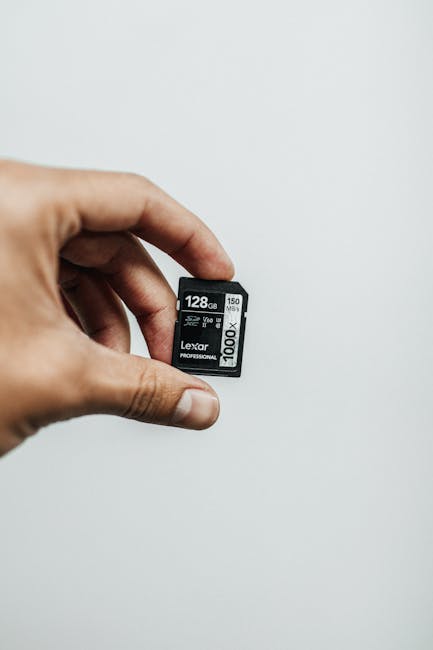
- Use a reliable SD/CFexpress card that you know is error-free—avoid cards with known write issues or “sometimes it fails.”
If a firmware package includes multiple files (common on some systems), keep the structure exactly as provided. Changing filenames or unzipping into the wrong folder is a classic cause of update failure.
Document your settings: the “restore in minutes” strategy
The key takeaway: you should assume you’ll need to reconfigure at least some items, so document now.
I treat firmware updates like changing a lens in an emergency bag—preparedness matters. Here’s my approach:
- Write down your Custom Modes (C1/C2/C3 or equivalent). Note the AF mode, metering, drive mode, and any stabilization setting you rely on.
- Screenshot critical menus if your camera app or tethering workflow allows it.
- If your camera has a “save settings to card” option, use it. Some brands let you export a settings file that can be reloaded later.
- Record lens-specific behavior you care about (like a particular focus limiter setting, stabilization mode, or programmable ring mapping).
Original insight from my own workflow: I keep a one-page “update log” in the notes app for every body. It includes the firmware version number, the date, and what settings I used on real shoots. When something behaves slightly differently after an update, I can correlate the change instead of guessing.
Step-by-step: how to safely update camera firmware without losing settings
The key takeaway: follow the manufacturer’s update steps exactly, then validate by checking the same controls you use on real shoots.
Even when two camera brands look similar, the update steps can differ in how the device verifies firmware and whether it clears certain options. So use these steps as a safe template and always match the on-screen prompts.
1) Confirm current firmware version and model details
The key takeaway: you can’t safely update what you can’t identify.
Check your camera’s About/Settings screen and write down:
- Camera model (exact identifier)
- Current firmware version
- Current region or language if it’s relevant
Then compare that to the firmware package you downloaded.
2) Format the memory card (only if the manufacturer instructs it)
The key takeaway: formatting can help, but don’t do it blindly if you rely on card contents for other tasks.
When manufacturers request formatting, do it. Otherwise, I prefer a dedicated “firmware card” that I only use for updates and occasional tests. That reduces the risk of leaving behind weird files or directory conflicts.
3) Copy firmware to the correct folder and verify the update folder structure
The key takeaway: directory structure is part of the firmware.
If the update instructions say the firmware should be in a specific path (like “/UPDATE” or a brand-specific directory name), copy it exactly. After copying, I do a quick check by opening the card in a computer and confirming the file appears in the right place.
4) Start the update and never interrupt it
The key takeaway: firmware updates are not “pauseable.”
Once you press update, don’t remove the battery, don’t power off, and don’t switch modes mid-process. If the camera prompts you to reboot, wait for it to complete fully before touching anything.
5) After the update: validate settings and test the controls that matter
The key takeaway: confirmation on-screen doesn’t guarantee your shooting behavior matches last week.
Right after the update, I do a short validation sequence:
- Load each Custom Mode (C1/C2/C3) and confirm AF method, drive mode, and metering are correct.
- Check stabilization settings (especially if your workflow depends on tripod vs handheld).
- Run an AF test: face/eye tracking on a static subject, then a moving subject at typical distances you shoot.
- Verify that any custom buttons/assignments still match your memory.
If you keep an “always on” feature like silent shutter or a specific exposure assist, check those too. These are often the first things that drift after a firmware change.
Step-by-step: how to update lens firmware (and what’s different from updating the camera)
The key takeaway: lens updates can be even more sensitive because the camera and lens communicate differently during the process.
Lens firmware (for models with update capability) typically improves autofocus performance, stabilization behavior, and compatibility with newer camera bodies. The update process may require the lens to be mounted correctly and sometimes the camera must be in a specific mode.
Lens update safety basics that prevent “won’t start” errors
The key takeaway: treat the lens update like a live cable connection—secure, stable, and uninterrupted.
- Mount the lens firmly and avoid wiggling while updating.
- Use a battery level threshold that’s at least as high as for the camera (I go higher when possible).
- If your lens update instructions recommend AC power, follow it. Don’t improvise.
- Use the exact lens firmware package for your lens model and revision.
How I update a lens in under 20 minutes (real-world workflow)
The key takeaway: speed is fine as long as stability stays non-negotiable.
My typical sequence in 2026 looks like this:
- Download lens firmware to a dedicated firmware card.
- Mount the lens on the camera, confirm contacts are clean (a quick visual check, no heroics).
- Confirm battery is in the safe range (or connect AC if recommended).
- Run the lens update from the camera’s menu exactly as instructed.
- After it finishes, run a quick focus test at your usual minimum focusing distance and one longer distance.
One practical detail I learned the hard way: after lens firmware, I re-test focus limiter behavior (if your lens has it). It’s not a guaranteed change, but it’s a small test that can reveal an unexpected adjustment immediately.
Will firmware updates erase your settings? A realistic answer by scenario
The key takeaway: firmware updates usually preserve settings, but specific scenarios can cause resets or behavior changes.
Here’s a direct, real-world breakdown based on how camera firmware typically handles user configuration storage.
| Scenario | What you can expect | What to do |
|---|---|---|
| Minor firmware update (same major version) | Most settings remain; some may adjust subtly (AF behavior, IS handshake) | Document Custom Modes and run a fast AF/exposure validation test |
| Major feature update | Some menus can reset to defaults, especially if new options are introduced | Export settings if your camera supports it, then reload after update |
| Wrong firmware file/model mismatch | Update may fail or behave unpredictably | Stop immediately; re-download the correct package and follow official steps |
| Power interruption mid-update | Risk of corrupted firmware; settings may not be accessible | Use AC power or high-battery headroom; never interrupt |
| Lens firmware update | User settings on the camera usually remain; lens-specific behaviors may change | Test focus limiter, stabilization mode, and programmable ring mapping |
My hard rule: treat “settings not erased” as a best-case outcome, not the plan. Your documentation step turns an unpleasant surprise into a manageable inconvenience.
Security angle for photographers: safer firmware updates in 2026
The key takeaway: firmware updates aren’t just performance upgrades—they’re also a security control.
Modern cameras and lenses increasingly interact with apps, remote triggers, Wi-Fi/Bluetooth, and tethering workflows. That means a firmware update can patch vulnerabilities that a threat actor could exploit through accessory connectivity.
While firmware updates can improve security, your update process also impacts safety. I recommend photographers follow a basic cybersecurity hygiene pattern during firmware updating:
- Use a trusted computer for downloads and copying files. Avoid random public machines.
- Download only from official domains and verify file checks if the manufacturer offers it.
- Keep your camera connected only to what you need (avoid unnecessary pairing or remote connections during updating).
- After updating, review connection settings (especially if you use third-party apps or remote docks).
If you want a deeper security workflow, my site’s guide on cybersecurity for photographers covers how to keep client shoots safe when you’re syncing or backing up after shoots.
People Also Ask: common questions about firmware updates and lost settings
Do firmware updates reset camera settings?
The key takeaway: usually not, but it’s not guaranteed.
Most mainstream updates preserve menu and custom settings, especially when it’s a minor revision. However, updates introducing new options can sometimes trigger default values for specific settings, and power interruptions are the scenario that breaks the “everything stays the same” assumption.
If you want the most reliable outcome, export/save settings to card if your camera supports it, then verify Custom Modes after the update.
How can I update camera firmware without losing my custom modes?
The key takeaway: the safest method is to back up Custom Modes before you update, then reload and test.
Do this:
- Note which slots you use (C1/C2/C3, U1/U2, My Menu profiles, etc.).
- Export settings to the card or to a computer using any built-in backup tool.
- After the update, reload the saved settings and immediately verify AF and drive mode.
In real assignments, I’ve stopped relying on “I’ll remember it later.” After a reset, it’s easy to miss a detail like a focus area mode change that only shows up when you’re shooting at the moment that matters.
Can I update lens firmware without updating the camera?
The key takeaway: many lens updates are independent, but compatibility still matters.
In most ecosystems, you can update a lens firmware without changing the camera firmware first. That said, some manufacturer release notes tie improvements to specific camera firmware versions, especially for communication protocols, autofocus refinements, and stabilized handshake behavior.
Always read the release notes and ensure the lens update package supports your current camera model. If it doesn’t, update the camera first.
What if the firmware update fails or the camera won’t boot?
The key takeaway: failure recovery depends on how far the update progressed, so follow official recovery steps.
If the update process reports an error, don’t keep retrying in random ways. Power down safely, remove unnecessary accessories, and re-check that you used the correct firmware file and correct folder structure.
In severe cases (like repeated interruption), manufacturers may require a recovery procedure or service center. This is another reason I strongly recommend AC power when the instructions allow it.
Practical comparison: firmware update methods for photographers
The key takeaway: the “best” method is the one that matches your environment and reduces interruption risk.
Below is a quick comparison of common approaches. Use it to decide what’s appropriate for your gear setup.
| Update Method | Typical Setup | Pros | Cons | Best For |
|---|---|---|---|---|
| Card-based update | Download firmware to SD/CF card | Reliable, offline, minimal variables | You must prepare the card correctly | Most photographers, especially before travel |
| In-app update (camera connected to phone/computer) | Wi-Fi/Bluetooth tethering and download through app | Convenient | Wireless drop risk; more variables | Low-risk updates when power is guaranteed |
| Tethered update via computer | Use manufacturer software on a desktop | Good visibility and file management | More dependency on software/USB stability | Studio workflows and tech-savvy setups |
If you’re trying to minimize the chance of settings loss, card-based updates are usually the safest because they reduce wireless interruption possibilities.
What to test after the update (so you trust the result on your next shoot)
The key takeaway: the best post-update check is a mini test session that matches your real shooting.
Here’s my practical testing checklist for the first 10–15 minutes after updating both camera and lens:
- AF behavior: try one shot in single point and one in your typical tracking mode.
- Exposure: shoot the same scene before and after (if possible) or at least validate histogram behavior in a high-contrast setup.
- Stabilization: test handheld at a shutter speed you usually use and compare sharpness.
- Custom controls: press the buttons you touch constantly—playback zoom, AF-ON, exposure comp, and any programmable rings.
- Workflow integration: confirm tethering/app connectivity if you depend on it.
If you’re reviewing gear and want to connect this to real-world camera behavior, you may also enjoy my notes in gear reviews where I describe how firmware differences show up in autofocus and stabilization performance across shooting situations.
When should you update? A schedule that fits real assignments
The key takeaway: don’t treat firmware updates like impulse purchases—timing matters.
My approach is simple:
- Update in a low-stress window (daytime, not 30 minutes before a client pickup).
- Prioritize critical fixes listed in release notes (AF reliability, stabilization handshake, compatibility improvements).
- Delay non-critical updates if you’re mid-season or on a tight travel schedule.
A strong rule I follow: if the update doesn’t address something I’ve experienced (or a compatibility issue with a lens I’ll use), I wait until I can test it with the exact subjects I shoot.
Backup plan: what to do if your settings are still wrong after updating
The key takeaway: your goal is fast restoration, not panic.
If you discover settings drift after a firmware update, do this sequence:
- Re-check the camera’s saved profiles (if you have multiple custom setups).
- Reload exported settings from card (if available).
- If you don’t have exports, rebuild only the essentials first: AF mode, drive mode, metering, and exposure parameters.
- Then tune secondary settings (display aids, button remaps, playback settings) once shooting results are stable.
Don’t waste time reconfiguring everything from scratch under pressure. It’s better to restore “functional shooting” quickly and then refine.
Conclusion: your safest firmware update is the one you can verify
The key takeaway: firmware updates explained for photographers always come down to preparation, power stability, and a reliable settings verification routine.
If you follow the checklist—high battery or AC power, official firmware files, correct card structure, and documentation of your Custom Modes—you’ll preserve your workflow and protect client deadlines. The real win isn’t just avoiding lost settings; it’s making the update predictable enough that you can trust autofocus, exposure, and stabilization on the very next shoot in 2026.
Actionable takeaway: Before your next firmware update, spend 10 minutes exporting or documenting your Custom Modes and lens behavior. Then run the update when you can keep power stable for 30–45 minutes. That’s how you update camera and lens software safely without losing what matters.
Image SEO (featured image suggestion): Alt text: “Firmware Updates Explained on camera menu—update camera and lens firmware safely while preserving settings.”