

One nasty truth: I’ve seen photographer “data loss” incidents that weren’t accidental at all. A mislabeled cloud share, a reused password, or an exposed gallery link turned a normal delivery workflow into an emergency call—usually during peak season.
This Cybersecurity Checklist for Photographers: Secure Cloud, Devices, and Client Galleries is built for real shoots, real deadlines, and the tools photographers actually use. If you protect your storage, harden your devices, and control how clients view galleries, you dramatically reduce the odds of leaks, ransomware damage, and “where did my files go?” chaos.
Featured-snippet answer: Secure your workflow by (1) locking cloud access with MFA and strong share controls, (2) hardening your devices with encryption and backups, and (3) using expiring, access-limited client galleries with watermarking and audit logs.
Start here: the photographer threat model (what you’re actually defending)
Before you change settings, identify the three most common ways photographers lose images and client data. In my experience, the real threats aren’t Hollywood hacks—they’re convenience failures: overshared links, weak logins, and unpatched software.
Threat 1: Credential theft. Reused passwords and weak MFA setup lead to account takeovers. Once someone gets into your cloud, they can download client galleries, originals, and invoices.
Threat 2: Overshared content. Gallery links, sync folders, and “anyone with the link” settings cause unintended access. This is especially common when photographers collaborate with editors, assistants, or vendors.
Threat 3: Ransomware and device compromise. A compromised laptop can encrypt your working files and wipe external drives. If you don’t maintain offline backups, you’ll be forced into emergency re-edits—or worse, reshoots.
In 2026, most photographers are cloud-first, mobile-heavy, and using third-party delivery platforms. That means your security must cover endpoints, cloud permissions, and gallery exposure—not just antivirus.
Cybersecurity Checklist for Photographers: secure your cloud like a studio
Your cloud is your digital studio. If it’s not locked down, every “sent to client” workflow becomes a potential data leak.
Enable MFA everywhere (and use an authenticator, not SMS)
MFA is the single highest-impact fix after password hygiene. I recommend an authenticator app (like Google Authenticator, Microsoft Authenticator, or Authy) because SMS can be intercepted in real-world cases.
- Turn on MFA for email first. Email is the key that resets every other account.
- Enable MFA for cloud storage (Google Drive, Dropbox, OneDrive) and photo-management tools.
- For critical accounts, require app-based MFA even if your provider supports it.
What most people get wrong: They enable MFA on the cloud but forget MFA on the email account that can be used to take over the cloud.
Use least-privilege sharing for client work (no “anyone with the link”)
Least-privilege sharing means you grant the smallest access required, for the shortest time required. For galleries, “view-only” is usually enough; for collaborators, add access only to the specific folder(s) you intend.
- Avoid “anyone with the link” when delivering client galleries.
- Prefer domain-restricted access (if your provider supports it) for internal collaborators.
- For assistants/editors, use a dedicated folder with restricted permissions.
In practice, I set a separate share folder per client session. When delivery finishes, I remove access instead of leaving links active for months.
Lock down upload/sync permissions and shared drives
Cloud “sync” can become a stealthy exfiltration path. If a compromised device has sync enabled, it can upload entire catalogs without your awareness.
Use these controls:
- Disable “allow anyone” links and verify sharing settings after every app update.
- For shared drives or folders, restrict upload permission to authorized accounts only.
- Turn on activity/audit logs if your plan includes them.
If you use tools like Google Workspace, Microsoft 365, or Dropbox Business, audit logs are worth enabling because they show when links were created and who downloaded files.
Adopt a retention rule for shared galleries (expire them)
Galleries should not live forever. A gallery link that stays accessible for a year is an invitation to link leaks and accidental forwarding.
My rule of thumb as of 2026:
- For weddings and larger projects: expire gallery access 30–60 days after final delivery.
- For portraits and quick-turn shoots: expire 14–30 days after delivery.
- For ongoing clients you work with monthly: keep a client portal account, but still enforce session permissions and remove old project folders.
If you use gallery platforms (like Pixieset, ShootProof, SmugMug, or similar), set expiration windows and disable “download originals” unless the contract requires it.
Device security checklist: harden laptops, desktops, and mobile gear
If your laptop is the editing hub, treat it like the crown jewel. The fastest path to disaster is assuming the cloud is safe while leaving the device wide open.
Encrypt everything: full-disk encryption and secure removable drives
Encryption is your safety net if a device is lost, stolen, or extracted from a compromised endpoint. For photographers, full-disk encryption is non-negotiable.
- Windows: enable BitLocker (and store recovery keys securely).
- macOS: FileVault is the default route—turn it on and confirm it’s active.
- External drives: use hardware encryption (when possible) or software encryption with strong passwords.
Also encrypt card-reader workflows. I’ve learned the hard way that “temporary” exports on an unencrypted drive become permanent after one busy week.
Set strong device login and lock screens aggressively
Use a passphrase rather than a 4-digit PIN. Then reduce exposure time by locking screens quickly.
- Set auto-lock to 1–5 minutes.
- Use a strong login password, plus a second factor where available.
- Disable “remember me” on shared or public Wi‑Fi devices.
When you’re photographing on location, you also need to secure your workflow during breaks. Someone doesn’t need to steal the laptop to copy files if it’s left unlocked.
Keep systems patched: automate updates for OS and key apps
Attackers love outdated software. In 2026, patching is a continuous process, not a monthly chore.
- Turn on automatic OS updates.
- Update browser, PDF viewers, and photo workflow apps regularly.
- Update cloud sync clients and plugins—these often have security fixes.
I run updates early in the week and schedule heavy editing (like batch denoising) for after updates finish. That reduces the chance of a process interruption while keeping security current.
Use endpoint protection and limit admin privileges
Security is stronger when you reduce what an attacker can do. If your editing account is admin-only, a compromise can spread quickly.
- Create a non-admin daily user account.
- Use a reputable endpoint security suite (paid or enterprise, depending on your budget).
- Block unknown macros and avoid running installers from “random free presets” sites.
My unpopular opinion: You don’t need 15 security apps. You need reliable endpoint protection plus disciplined admin control. Too many tools can slow systems and lead to “I turned it off” habits.
Secure your Wi‑Fi and eliminate “gallery delivery” exposure
When you upload galleries on location, you’re exposed to malicious captive portals and rogue hotspots. Avoid public Wi‑Fi for uploading final client galleries.
- Prefer a trusted hotspot or secured tethering.
- If you must use public Wi‑Fi, use a reputable VPN.
- Disable auto-join for unknown networks.
One practical workflow: upload in the office via wired or trusted network, then share access links from a secured environment.
Client galleries security: stop link leaks and control downloads
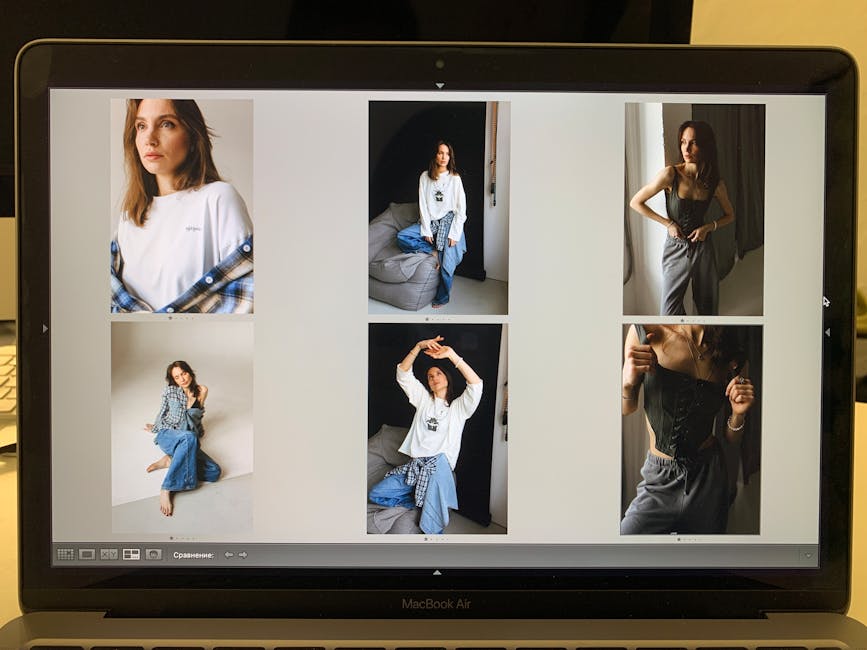
Your client gallery is both a marketing tool and a security surface. If you treat it like a “set and forget” page, it becomes easier to scrape, forward, or misuse.
Choose the right gallery settings: view-only, no indexing, and expiring links
A secure gallery configuration reduces opportunities for unauthorized browsing and saves your brand reputation.
- View-only for clients until the contract requires download access.
- Expiring links after delivery. Set realistic time windows.
- Disable search engine indexing for private galleries.
- Turn off “public page” options unless the content is meant to be public.
If a platform supports watermarking, enable it for low-resolution previews. It’s a simple deterrent that also reminds viewers that originals aren’t for public reuse.
Watermark strategy: what works in 2026 (and what backfires)
Watermarks are not about making stealing impossible—they’re about changing the economics. A watermark should be visible enough to discourage “quick reposting,” but not so heavy that clients blame you for quality.
My approach:
- Watermark previews with a subtle corner mark or thin overlay.
- Enable full-resolution “no watermark” only after the client confirms purchase or delivery terms.
- For high-value commissions, keep original downloads permissioned and time-limited.
What backfires: Adding a giant watermark across the entire image can reduce perceived value and increases support emails. Clients think it’s a quality choice, not a security setting.
Audit sharing and access frequently (especially for collaborators)
When you involve editors, second shooters, or retouchers, you must monitor who has access. A collaborator account is still an endpoint—and sometimes they use shared devices.
- Review active links and share permissions weekly.
- Remove access immediately after delivery.
- Confirm collaborator accounts use MFA.
In one project I assisted, a collaborator’s “temporary folder” stayed accessible for months. The gallery eventually surfaced in a public feed. We fixed it fast, but the lesson stuck: time-box access by default.
Backups for photographers: ransomware-proof your editing workflow
Backups are the difference between a short recovery and a career-ending emergency. If you’re editing constantly, your backup plan must capture changes quickly and reliably.
Use the 3-2-1 rule with a photographer-friendly twist
The 3-2-1 rule is a baseline: 3 copies, 2 media types, 1 offsite. For photographers, add a twist: back up both originals and work-in-progress exports.
- Copy 1: your primary working drive (encrypted).
- Copy 2: an external drive with encryption (offline-capable).
- Copy 3: an offsite option (cloud backup or a second location drive).
If you deliver to clients, include a final “delivery archive” folder that is updated after each project. That way, if your editing catalog gets corrupted, you still have the last delivered set.
Automate backups and verify them (test restores, not just backups)
Many photographers back up frequently but never verify. A backup that can’t restore becomes a story you tell after the damage.
Here’s what I do:
- Run automated backups nightly or after shoot sessions.
- Once per month, restore one small folder to a test location.
- Confirm file integrity (size/timestamps) and that previews open.
Budget note for 2026: storage costs remain reasonable compared to the cost of reshoots. If you’re on a tight budget, prioritize backups for originals first, then work-in-progress.
Offline backup discipline: avoid “always-on” external drives
Ransomware can target connected external drives. If your backup drive is always connected, you’re handing attackers an easy path.
- Use external drives that disconnect after backups.
- For network drives, restrict access and isolate backup shares.
- Consider snapshot-based backup tools when available.
This is a key point many photographers miss: the safest backup is the one that can’t be reached from a compromised device.
People Also Ask: Cybersecurity checklist questions photographers ask a lot
What’s the biggest cybersecurity risk for photographers?
The biggest risk is usually account compromise or oversharing, not failing to install antivirus. Most breaches in photographer workflows come from weak authentication, shared links, or devices with open sync permissions.
If you only fix three things: enable MFA for email, remove public “anyone with link” sharing, and keep encryption on for laptops and external drives.
Should I use a password manager for my photography business?
Yes—use one. A password manager is how you avoid password reuse across cloud storage, gallery platforms, client management tools, and your email account.
- Generate unique passwords for each service.
- Store recovery codes securely (in the password manager or an encrypted vault).
- Use the manager on the same devices you browse galleries and upload deliveries.
In my workflow, I also keep a short “incident checklist” note inside the password manager so I can act fast if an account is locked or suspicious activity appears.
How do I secure client galleries if I use multiple platforms?
Standardize your approach. For each platform, define the same baseline: expiring links, view-only until delivery completion, watermark previews, and disabled indexing.
Then document your process: who creates the link, who sends it, and when you revoke access. Consistency beats “perfect settings” that you only remember sometimes.
Is cloud storage safe enough for raw photo files?
Cloud storage is safe when you treat it like a system you administer, not like a vending machine. With MFA, least-privilege sharing, encryption at rest (offered by most providers), and strong device security, cloud storage is an effective part of a modern backup strategy.
But you still need offline or second-location protection for ransomware resilience and restore reliability.
Practical workflow: my secure delivery process for client galleries
When I deliver galleries, I follow a repeatable sequence that reduces “oops” moments. This is the part that takes cybersecurity from theory to results.
Step-by-step: secure the upload-to-client message chain
- Prepare a dedicated encrypted folder for the client project on your working drive.
- Upload to cloud storage from a secured device (auto-lock enabled, encryption on, patched OS).
- Configure access: view-only, expiring link, disable indexing, and restrict downloads if not included.
- Send the link via a secure communication method (email is fine, but avoid casual DMs that get forwarded).
- Record which account created the share link and set a revoke date.
- Revoke access after the expiration window or after the client downloads their order.
This workflow is intentionally boring. That’s good. Most compromises happen when people improvise during stressful deadlines.
Collaborator workflow: how to share without creating a security hole
When I hire an editor or retoucher, I don’t grant blanket access to my entire library. I share only the exact folder needed for the project.
- Create a project folder with restricted permissions.
- Enable MFA on the collaborator account (require it).
- Set a defined end date and remove access after delivery.
- Use an export/ingest folder so your sync isn’t a two-way free-for-all.
My rule: if you wouldn’t hand your external hard drive to a stranger, don’t grant stranger-level cloud permissions.
Ransomware and account takeover response: what to do if something goes wrong
Security isn’t just prevention. Knowing the first 30 minutes of incident response keeps damage contained.
Immediate actions (first 15–30 minutes)
- Disconnect the affected device from the network (Wi‑Fi and Ethernet).
- Pause any syncing services and stop new uploads.
- Secure email: change the email password and review recent sign-in activity.
- Revoke sessions for cloud accounts and rotate passwords.
If you suspect ransomware, do not keep “testing” folders. Preserve evidence and avoid writing to the storage media.
Restore strategy: start from the cleanest backups
When restoring, go from the least likely-to-be-infected copy. That usually means the offline or second-location backup rather than anything currently connected to your compromised environment.
- Restore originals first, then catalogs, then exports.
- Verify file integrity and check for unusual file renames or new executable files.
- Change passwords only after you regain trust in the device.
If you operate under client contracts, notify clients when required—many jurisdictions and industry standards treat certain breaches seriously.
Quick comparison: safer gallery and storage options (and why they differ)
Different tools can be secure in different ways. The goal isn’t to find “the perfect platform”—it’s to understand what each option gets right and where you still must secure settings.
| Tool/Approach | Strength | Security Watch-Out |
|---|---|---|
| Dedicated gallery platform (client login optional) | Expiring links, previews, watermarking features | Some settings default to long-lived links—verify per project |
| Cloud share links (Drive/Dropbox/OneDrive) | Easy permissions and folder-based control | “Anyone with link” is a frequent accidental leak |
| Client portal with account login | Better access control and audit trails | Make sure accounts enforce MFA and secure password resets |
| Local-only delivery (USB/optical) | Less reliance on web sharing | Delivery media can be lost and local files can be ransomware-hit |
My takeaway: the safest system is the one where your permissions are time-boxed, access is restricted, and you can revoke access quickly when delivery ends.
30+ item Cybersecurity Checklist for Photographers (copy/paste)
Use this list like a pre-flight check before peak season. I recommend running it once in early spring and again before your busiest month.
Cloud security (top priorities)
- Enable MFA for your email account.
- Enable MFA for cloud storage accounts (Drive/Dropbox/OneDrive).
- Turn on security notifications for sign-ins and link creation.
- Use least-privilege permissions for each client folder.
- Disable “anyone with the link” for client galleries by default.
- Set expiring links (14–60 days depending on project type).
- Disable public indexing for private galleries.
- Restrict download of originals unless required by contract.
- Review shared links weekly and revoke old access.
- Separate work folders per client session.
- Verify collaborators have MFA and are granted only the needed folder.
Device security
- Turn on full-disk encryption (BitLocker or FileVault).
- Store recovery keys in a secure place you control.
- Use a long passphrase and set auto-lock to 1–5 minutes.
- Keep OS and browser updated automatically.
- Update photo management apps and cloud sync clients.
- Use a non-admin daily user account.
- Install reputable endpoint protection (don’t ignore alerts).
- Avoid running presets/tools from unknown sites.
- Use a VPN on public Wi‑Fi and disable auto-join to unknown networks.
- Confirm removable drives are encrypted.
Backups and recovery
- Use 3-2-1 backups: originals + delivered archives, not just “one copy.”
- Back up work-in-progress edits and exported deliverables.
- Encrypt backup drives.
- Keep an offline backup drive disconnected after backups.
- Once per month, test restore a small folder.
- Maintain an incident response note (accounts, recovery steps, support contacts).
Conclusion: secure your workflow where clients feel it—time limits, access control, and backups
If you take one actionable takeaway from this Cybersecurity Checklist for Photographers: Secure Cloud, Devices, and Client Galleries, make it this: treat sharing links like temporary work orders, not permanent resources.
In 2026, strong cybersecurity for photographers means three aligned layers—cloud access control, device hardening, and ransomware-proof backups. Fix those, and your gear reviews, client deliveries, and imaging workflow won’t be interrupted by avoidable security incidents.
Internal links (related reading):
- Best photo laptops for 2026 (and what to check for security)
- Passwords and MFA for creatives: the fastest way to stop account takeovers
- Secure photo workflow from card to cloud: reduce leaks from the moment you import
- Ransomware and digital asset protection: what changed in 2025–2026
Image SEO note: Featured image alt text suggestion (use on your post hero image): Cybersecurity Checklist for Photographers secure cloud devices and client gallery settings